Using out-of-stock demand to decide what to reorder, and when price drop alerts help
Sales reports only show what you sold. Back-in-stock sign-ups show what people wanted while you had none, which is useful when you decide what to buy next.
The buying meeting starts with the sales report. The jacket in navy sold well, the green one did not, so the order goes heavy on navy again. What the report cannot show is the size M in green that sold out in the second week and then sat at zero for a month while people looked at it and left. Nothing was sold, so nothing was recorded.
Back-in-stock sign-ups fill part of that gap. Every person who asks to be told when an item returns has told you, in writing, that they wanted it and could not have it. Added up across the catalogue, those sign-ups are a demand signal you do not get anywhere else in Magento. They are not orders, though, and reading them well takes a little care.
What Magento's own reports can and cannot tell you
Magento's product reports cover what happened: Bestsellers and Ordered Products list items by quantity ordered in a period, and the Low Stock report lists products whose stock is within a range you set1. Those are the right reports for "what is selling" and "what is about to run out". None of them counts people who wanted something that was already gone.
Magento's own product alerts do record who is waiting, but you see them per product, on a Product Alerts tab on the product's edit page2. There is no list that adds them up across the catalogue, and guests have to create an account before they can sign up at all2, so the people most likely to leave quietly are the ones the numbers miss.
What the Most Wanted Products report shows
In our Back in Stock module, Softaware > Back in Stock Alerts > Most Wanted Products lists the products with the most people waiting, up to 200 of them. Options of configurable products get their own row, so "Jacket, M, Green" and "Jacket, L, Green" are counted separately, which is the level you actually order at.
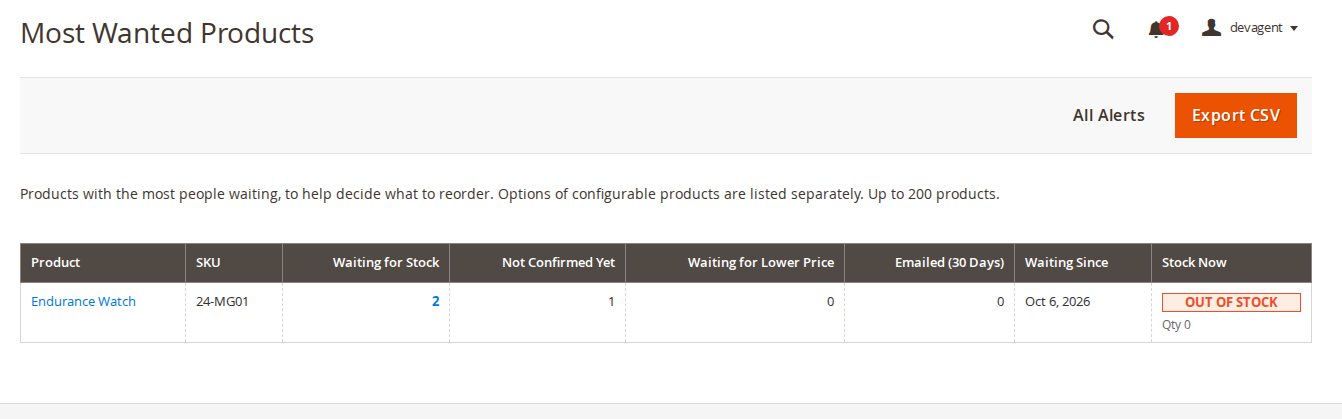
Each row has six numbers. Waiting for Stock is confirmed sign-ups that have not been emailed yet. Not Confirmed Yet is guest sign-ups where the confirmation link has not been clicked. Waiting for Lower Price counts price drop alerts. Emailed (30 Days) is how many alerts for that item were sent in the last month. Waiting Since is the date of the oldest open sign-up, and Stock Now shows whether the item can be bought and its quantity. The rows are sorted by people waiting, and the Waiting for Stock number opens the list of those alerts. The report can be exported as CSV, so it can sit next to your supplier sheet.
The same counts appear on each product's edit page, in a "Back in Stock Alerts (N waiting)" section, which is handy when you are already looking at one product.
Reading the numbers without fooling yourself
A sign-up costs the shopper ten seconds. It is a stronger signal than a page view and a much weaker one than an order, and some people sign up for several shops at once. So treat the numbers as a ranking rather than a forecast. A few questions help when you go down the list:
- Are the people confirmed? Confirmed sign-ups mean someone opened the email and clicked a button. A row with mostly unconfirmed guests is a weaker signal, and unconfirmed sign-ups are deleted after seven days by default anyway.
- How old is the demand? A row that has been waiting since spring tells you less about next month than one that started last week. People who waited months have often bought elsewhere.
- Is it one option or the whole range? Ten people waiting for size M and nobody for the other sizes usually means you under-bought one size, not that the product needs a bigger order overall.
- What happened last time? Emailed (30 Days) shows that alerts went out. The module does not link alerts to orders, so whether those emails turned into sales is something to check in your own order data.
Say you sell outdoor clothing and the report shows twelve people waiting for one jacket in size M, three for size L and nobody for the rest, all from the last fortnight. That is a fairly clear case for a small top-up of M and L. Two people who have been waiting since March for a discontinued colour are a different case: the honest move may be to disable the product, and the alert simply never fires.
When the stock does arrive, the module sends the alerts by cron, oldest sign-ups first. If you are bringing in only a handful of units, the "Send When Quantity Reaches" setting holds the emails back until enough can be sold, so you do not email twelve people about two jackets.
Price drop alerts, and what the "lower price" column is for
Price drop alerts are off by default. When you switch them on, in-stock products show "Email me if the price drops". At sign-up the module stores the final price for the shopper's customer group and website from Magento's price index, so special prices and catalogue price rules count. The shopper gets one email when that price falls below the stored one, and the alert ends. Cart price rules and coupon codes are applied in the cart rather than in the price index, so they do not set off a price alert. For configurable and bundle products the "as low as" price is compared, not the price of each option.
The Waiting for Lower Price column is the interesting part for buying. It shows which products people want but find too expensive at today's price. That is useful when you plan a sale: the items with the most price watchers are the ones where a reduction has an audience waiting for it, and those people hear about it without you sending a campaign. It is also useful the other way round. A product with many price watchers and no stock problem may simply be priced above what your customers expect.
Two practical points. With indexers on "Update by Schedule", the price change reaches the alert once the price index has been updated, which is normally within a minute or two and is also when the storefront shows the new price. And if you switch price alerts off again, the module stops sending the ones that are still waiting.
When you do not need any of this
If you sell a small range that you restock every week, the sales report and Low Stock report will tell you most of what you need, and a basic alert form is enough. The demand numbers start to earn their keep when you have many sizes and colours, long supplier lead times, or ranges you buy once a season, because those are the cases where a gap in stock hides demand for weeks.
The Back in Stock and Price Drop Alerts module page describes the report, the price alerts and the settings in full, with screenshots from the admin.
Sources
- Adobe Commerce Admin documentation, "Product reports", https://experienceleague.adobe.com/en/docs/commerce-admin/start/reporting/product-reports, checked 9 October 2026. ↩
- Adobe Commerce Admin documentation, "Product alerts", https://experienceleague.adobe.com/en/docs/commerce-admin/inventory/configuration/product-alerts/alert-setup, checked 9 October 2026. ↩1 ↩2
From our shop
Related Products
-
Back In Stock
Let guests and customers ask for an email when an out-of-stock product or option is back, or when its price drops, and see which products people are waiting for.
- Version v1.2.3
$139
