Manuals, size guides and safety data sheets on Magento product pages
Customers keep asking for the same PDFs by email. Here is how to list them on the product page, what Magento offers on its own, and how to keep some files for buyers only.
A customer bought a garden bench from you last spring. Now one bolt is loose, the paper instructions went out with the cardboard, and she emails to ask for the assembly guide. Someone on your team finds the PDF in a shared folder and sends it. The next week a trade customer asks for the safety data sheet of a wood stain, and a shopper who has not bought anything yet wants the size chart before ordering boots. None of these questions is hard. They just keep coming, and each one is answered by hand.
The simple answer is to put the files where people look for them: on the product page, in a short list with a clear title, the file type and the size. Most files can be open to everybody. Some should only go to signed-in customers, to a customer group such as trade accounts, or to people who actually bought the product. That last group is the one Magento does not cover well on its own.
What Magento gives you without an extension
For an ordinary product (a bench, a pair of boots, a tin of stain) there is no file list in Magento. The usual workaround is to upload the PDF somewhere and paste a link into the description. It works, but the link is public, nobody sees how often it is used, and when the file changes you have to find every description that points to it.
Magento does have a product type built around files: the downloadable product. Adobe describes it as "anything that you can deliver as a file", with samples that "the customer can try before purchasing the product".1 After the purchase, "the My Downloadable Products page links to each order of downloadable products" in the customer account.1 You can choose whether downloads become available when the order item is Pending or Invoiced, and whether links are shareable; with Shareable set to No, customers have to sign in to use the link.1
That is the right tool when the file is what you sell: an ebook, a pattern, a software licence. It is the wrong tool for a manual that belongs to a physical product. A bench is a simple product with weight and shipping, and turning it into a downloadable product to carry a PDF is not an option. So for manuals, size guides and data sheets you need something next to the product, not a different product type.
Files next to the product
That is what our Product Attachments module adds. An attachment is a file upload or an external link (a video, a manufacturer's page) with a title, an optional description and a sort order. The icon comes from the file type, or you upload your own. You assign it to products by SKU list, to every product directly in a category, from the product edit form, or with a mass action on the product grid. A size guide that applies to two hundred boots is uploaded once and assigned through the category.
On the storefront the files appear in a Downloads tab on Luma and a Downloads section on Hyvä, each with its icon, title, type and size, for example "PDF, 471 KB".
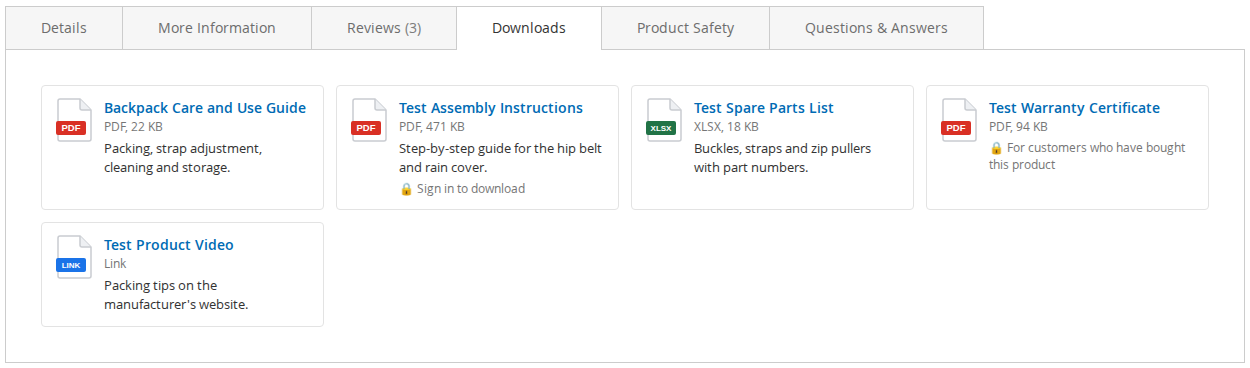
Every download goes through a controller rather than a direct link. Files are stored in var/softaware_attachments with random names, outside the public web root. The controller checks that the attachment is enabled and visible in the store view, checks the customer group and any sign-in or purchase requirement, adds one to the download counter and then streams the file. The counter is shown in the admin grid, which tells you, for example, whether anyone opens the care instructions you spent an afternoon writing.
Uploads are limited to the extensions and size you allow in the configuration. Script and executable types (php, html, svg, js, exe and others) are always rejected, whatever the allowed list says.
Keeping some files for trade customers or buyers
Each attachment has three ways to narrow who gets it.
- Customer Groups: only the selected groups see the file and can download it. Useful for trade price lists or technical sheets meant for business accounts.
- Sign-in Required to Download: guests see the file with a "Sign in to download" note and are sent to the sign-in page when they click it. You can also hide these files from guests completely.
- Only Customers Who Bought the Product: only signed-in customers with an order (not cancelled) for a product of this attachment can download it.
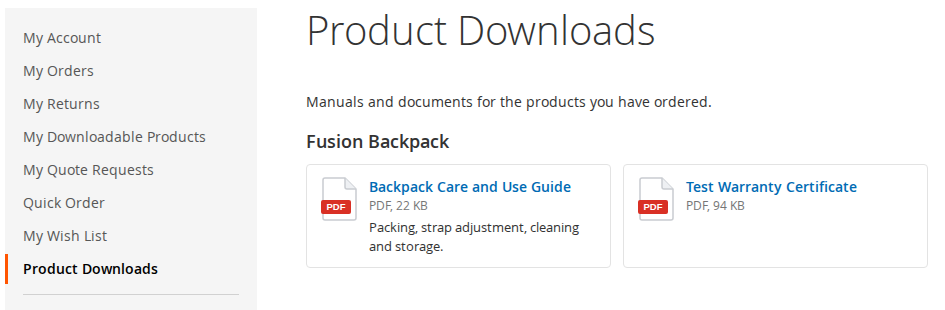
The bench guide can simply be public. The buyers-only option is for files you would rather not give away before the sale. Say you sell a kit with a detailed build manual that you do not want to give away before the sale. The product page lists the file with the note "For customers who have bought this product", and buyers find it again in My Account under Product Downloads, grouped by product. If you switch on the order email option, attachments marked "Show to Buyers" are listed below the items in the order confirmation as well.
One design decision is worth explaining. The note on a buyers-only file is the same for every visitor, whether they bought the product or not. We could have shown buyers a different line, but then the product page would have to vary per customer and could no longer be served from the full page cache. The check happens when someone clicks the file instead: buyers get it, others are sent back with a message, and guests go to the sign-in page.
Limits worth knowing
Buyers-only files need a customer account. The check looks at the orders of the signed-in customer, so a guest order does not count. If many of your customers check out as guests, ask whether a file really has to be private. If it does not, leave it open on the product page and mark it "Show to Buyers", so it also appears in the order email; keep buyers-only for the files that matter.
Category assignments apply to products directly in the category, not to products in its child categories. The upload size is also limited by PHP's upload_max_filesize and post_max_size, and the module's own default limit is 20 MB, so a large CAD file may need both settings raised first. On a setup with several web servers, the storage folder has to be shared between them, or downloads will fail on the servers that do not have the file.
And if you only have a handful of files that anyone may download, a link in the description is still a reasonable choice. The module earns its place when there are many files, when files are shared across many products, or when some of them should not be public.
The Product Attachments page has the user guide and links to the Luma and Hyvä demos, where a backpack carries a PDF manual in its Downloads tab.
Sources
- Adobe Experience League, "Downloadable product", https://experienceleague.adobe.com/en/docs/commerce-admin/catalog/products/types/product-create-downloadable, checked 9 October 2026. ↩1 ↩2 ↩3
From our shop
Related Products
-
Product Attachments
Manuals, data sheets and certificates on the product page, with sign-in, customer group and buyers-only downloads, for Luma and Hyvä.
- Version v1.2.2
$119
