Manuals, size guides and safety data sheets on Magento product pages
Customers keep asking for the same PDFs by email. Here is how to list them on the product page, what Magento offers on its own, and how to keep some files for buyers only.
Product attachments for Magento 2 (Luma and Hyvä): downloads tab, customer group and login restrictions, download counter, documents for bought products in My Account.
One-off payment, with 12 months of updates.
No subscription or automatic renewal. Keep using the versions included in your update period. Update and licence details
Composer package softaware/module-product-attachments
Assembly instructions, size charts and data sheets sit on the product page, where customers look for them.
Limit a file to signed-in customers, to customer groups or to customers who bought the product. The real file path is never shown.
Buyers find manuals and certificates for the products they ordered under My Account, and optionally in the order email.
All features
Feature tour
01 / 07
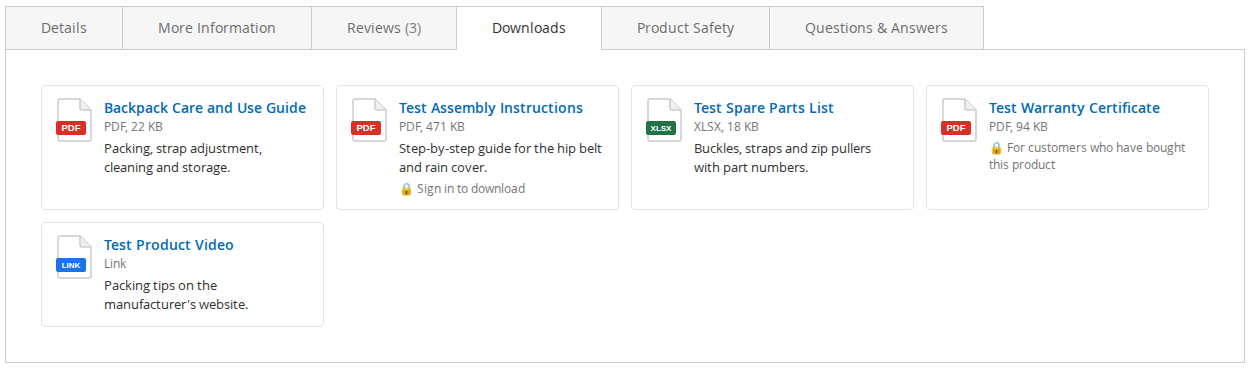
Each file shows a type icon, title, type and size and an optional description. Files that need sign-in or a purchase say so.
02 / 07
On Hyvä the files are listed in a Downloads section of the product details, styled with Tailwind.
03 / 07
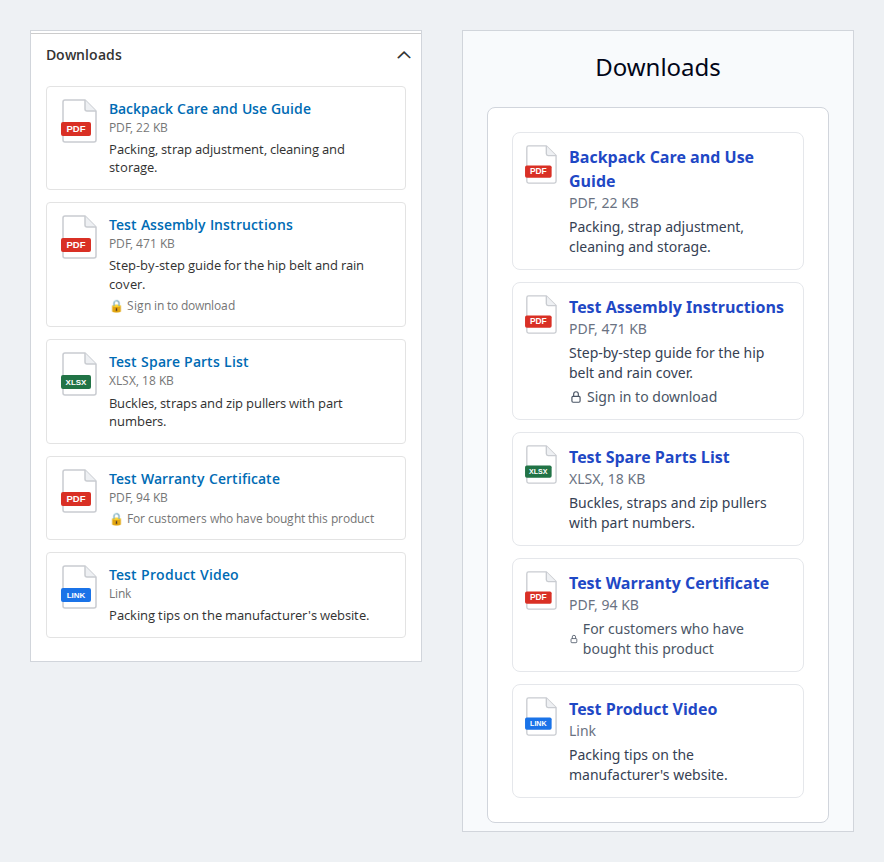
The file cards stack into one column on small screens, on Luma (left) and Hyvä (right).
04 / 07
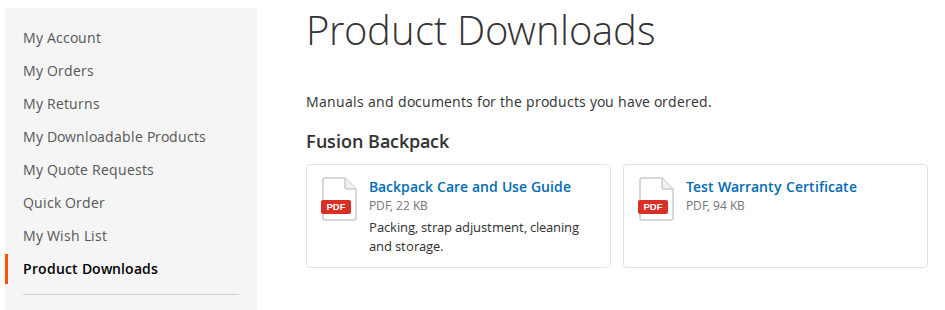
My Account > Product Downloads lists the files of every product the customer has ordered, grouped by product.
05 / 07
Type, status, assignments, sign-in and buyer settings, sort order and the number of downloads per attachment.
06 / 07
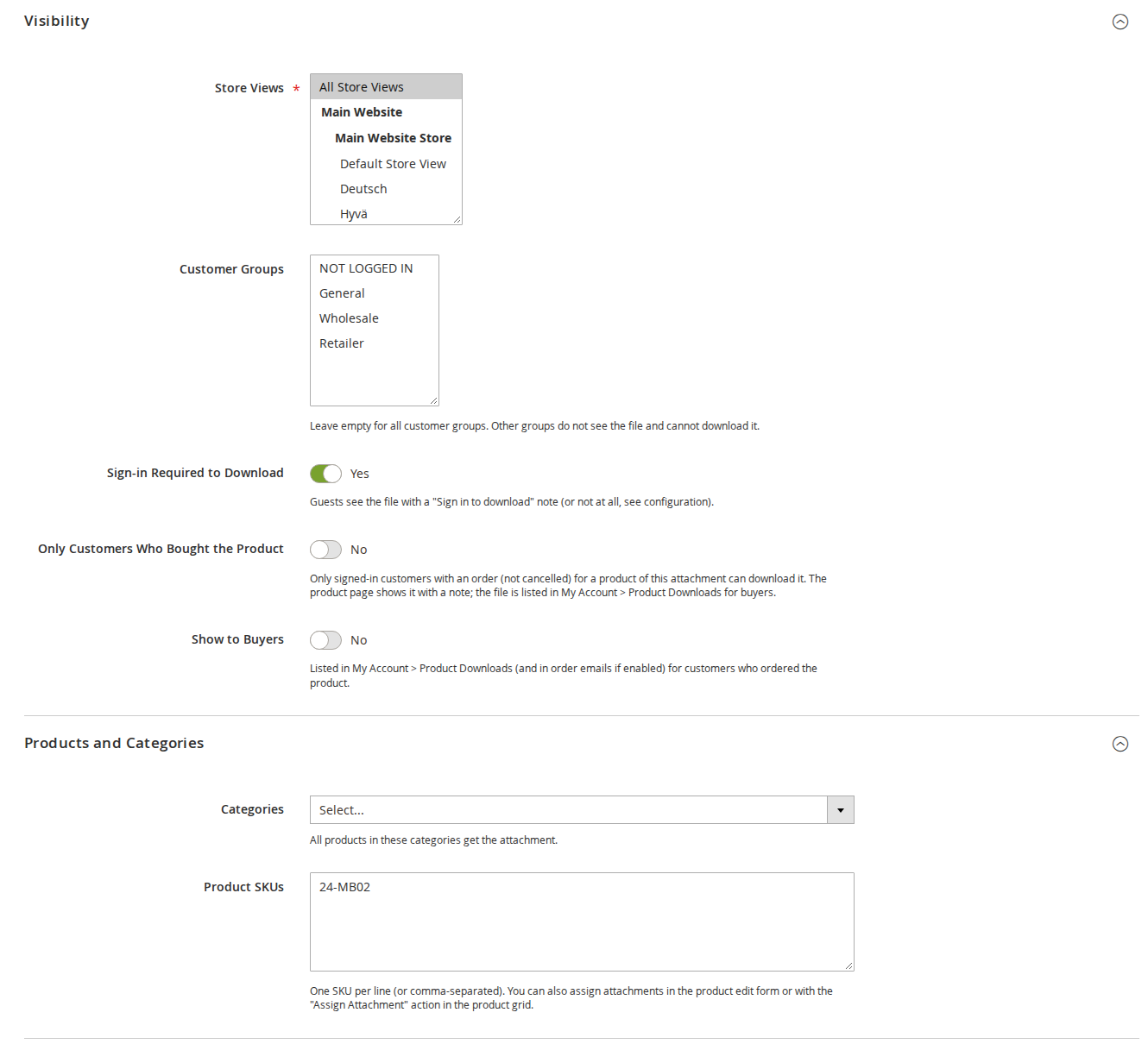
Store views, customer groups, sign-in required, only customers who bought the product, and assignment by category or SKU list.
07 / 07
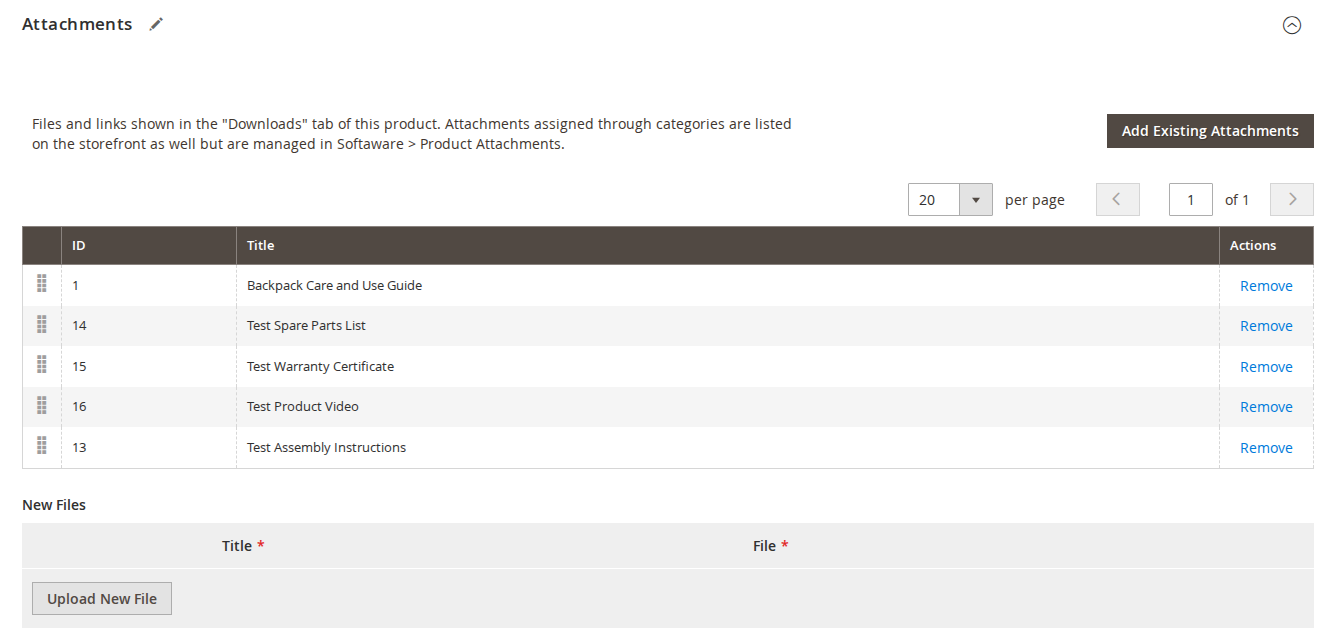
Add existing attachments from a grid, change their order, remove them, or upload new files directly in the product form.
Live demo
A full Magento store with the module installed, on Luma and on Hyvä. The admin demo signs you in with one click.
Compatibility
| Latest version | 1.2.2 · 9 Oct 2026 |
|---|---|
| composer.json requires | php ~8.2.0||~8.3.0||~8.4.0||~8.5.0 magento/framework ~103.0.7 softaware/module-core ^1.0 magento/module-backend * magento/module-catalog * magento/module-config * magento/module-customer * magento/module-media-storage * magento/module-sales * magento/module-store * magento/module-ui * |
Installation
After you buy, create a Composer key in your account. Then, in the root of your Magento project:
01Add the repository and your key (once per project)
composer config repositories.softaware composer https://repo.softawarecommerce.com
composer config --auth http-basic.repo.softawarecommerce.com PUBLIC_KEY PRIVATE_KEY
02Install the module
composer require softaware/module-product-attachments
03Enable it
bin/magento setup:upgrade
bin/magento setup:di:compile
bin/magento setup:static-content:deploy
bin/magento cache:flush
The last three are only needed in production mode.
Prefer a zip? Every version you are entitled to can be downloaded from My modules. More about Composer access
User guide
For version 1.2.2. The same guide comes with the module, in docs/user-guide.md.
Add downloadable files and links (manuals, data sheets, certificates, size charts, videos) to your products. They are listed in a Downloads tab on Luma and a Downloads section on Hyvä, with optional sign-in, customer group and buyers-only restrictions. This guide covers installation, configuration and day-to-day use.
| Magento | Open Source or Adobe Commerce 2.4.7 to 2.4.9 |
| PHP | 8.2 to 8.5 |
| Themes | Luma and themes based on it; Hyvä (tested with Hyvä 1.5 and the default theme 3.0) |
| Other | softaware/module-core (installed automatically) |
The checkout is not changed.
Install with Composer from the SoftAware Commerce repository. The access keys are in your account; see Composer access.
composer config repositories.softaware composer https://repo.softawarecommerce.com
composer config --auth http-basic.repo.softawarecommerce.com PUBLIC_KEY PRIVATE_KEY
composer require softaware/module-product-attachments
bin/magento setup:upgrade
bin/magento setup:di:compile            # production mode only
bin/magento setup:static-content:deploy # production mode only
bin/magento cache:flush
Hyvä: the module registers itself for Hyvä's Tailwind build (view/frontend/tailwind/tailwind-source.css). After installing, rebuild your theme CSS (npm run build in the theme's web/tailwind folder). Luma loads its own small CSS file.
To update later: composer update softaware/module-product-attachments, then the same bin/magento commands.
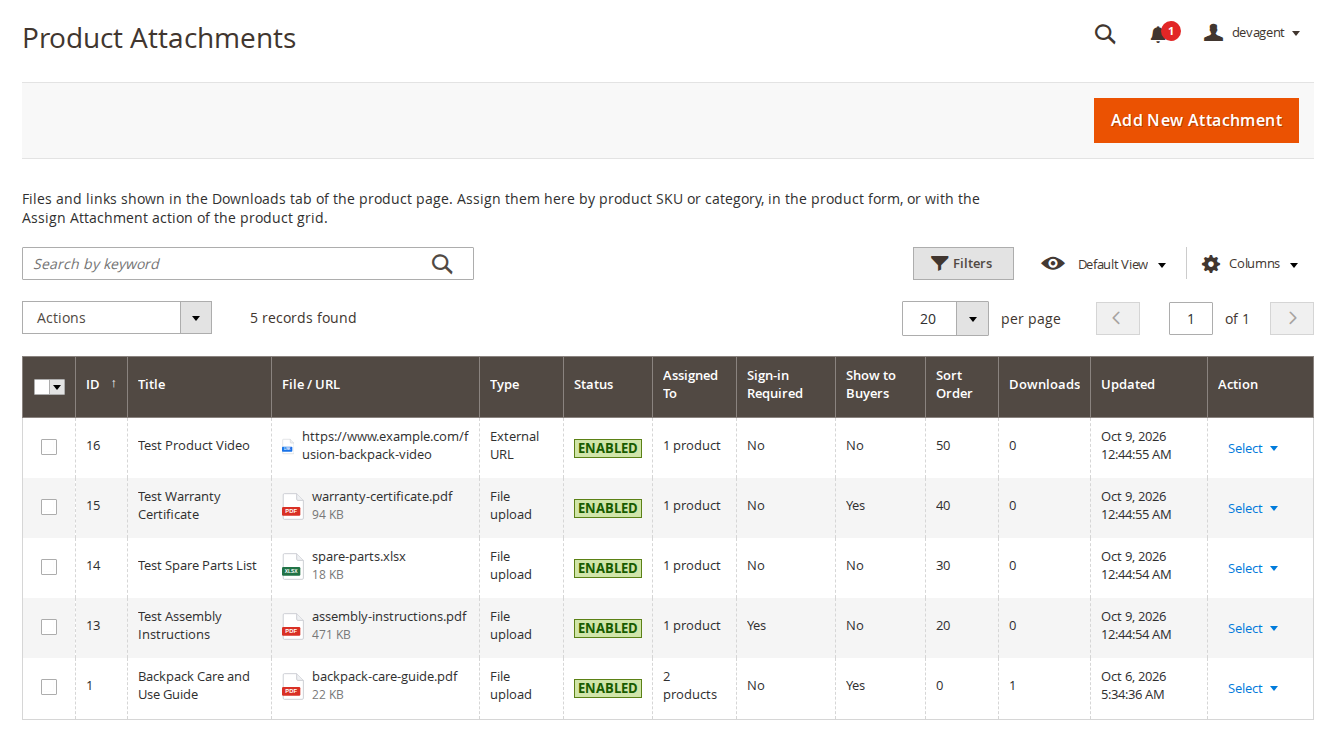
Softaware > Product Attachments > Manage Attachments lists every attachment with its file or URL (with type icon and size), type, status, the products and categories it is assigned to, Sign-in Required, Show to Buyers, sort order, number of downloads and the last update. Mass actions: Enable, Disable and Delete (deleting an attachment also deletes its stored file).
| Field | What it does |
|---|---|
| Title | Shown to customers, for example "Assembly instructions". |
| Description | Optional short text under the title. |
| Enabled | Switches the attachment on or off. |
| Source | File upload or External URL (http or https only). |
| File | The uploaded file. Allowed types and the maximum size come from the configuration. |
| External URL | The link target for URL attachments. |
| Custom Icon | Optional JPG, PNG, GIF or WebP image. Without it, the file type icon is used (PDF, Word, Excel, PowerPoint, archive, image, video, text or link). |
| Sort Order | Lower numbers are listed first. |
| Field | What it does |
|---|---|
| Store Views | The store views where the attachment is shown. |
| Customer Groups | Leave empty for all customer groups. Other groups do not see the file and cannot download it. |
| Sign-in Required to Download | Guests see the file with a "Sign in to download" note (or not at all, see the configuration) and are sent to the sign-in page when they click it. |
| Only Customers Who Bought the Product | Only signed-in customers with an order (not cancelled) for a product of this attachment can download it. The product page shows the file with the note "For customers who have bought this product"; others are sent back with a message, guests to the sign-in page. Buyers find it in My Account > Product Downloads. |
| Show to Buyers | Lists the attachment in My Account > Product Downloads (and in order emails, if enabled) for customers who ordered the product. |
| Field | What it does |
|---|---|
| Categories | All products directly in these categories get the attachment (not products of child categories). |
| Product SKUs | One SKU per line, or comma-separated. Unknown SKUs are reported when you save. |
Besides the SKU list and categories in the attachment form, there are two more ways:
Product edit form. Catalog > Products > edit a product > Attachments shows the attachments assigned directly to the product. Add Existing Attachments opens a grid to pick from; drag rows to change their order and click Remove to unassign one. Under New Files, Upload New File lets you add a title and a file; the attachment is created and assigned when you save the product. Attachments assigned through categories are shown on the storefront too, but are managed under Softaware > Product Attachments.
Product grid. Select products in Catalog > Products, open Actions and choose Assign Attachment or Remove Attachment, then the attachment. Remove Attachment only removes direct assignments.
Product page. On Luma the files are in a tab (default title "Downloads") in the product details tabs; on Hyvä they are in a Downloads section of the product details. Each file shows its icon, title, type and size (for example "PDF, 471 KB") and the description. Files that need sign-in show "Sign in to download"; buyers-only files show "For customers who have bought this product".
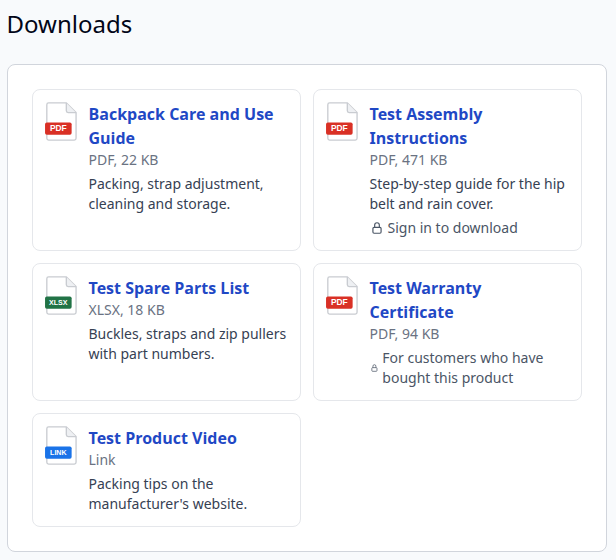
Downloads. Clicking a file opens productattachments/download/file/id/<id>. The controller checks that the attachment is enabled and visible in the store view, the customer group, sign-in and (for buyers-only files) the purchase, adds one to the download counter and then streams the file or redirects to the external URL. Guests who need to sign in are sent to the sign-in page.
My Account. Product Downloads lists the attachments marked Show to Buyers or Only Customers Who Bought the Product for every product the customer has ordered (cancelled orders are left out), grouped by product.
Order emails. When Add Download Links to Order Emails is on, the "Show to Buyers" attachments are listed below the items in order confirmation emails. Files that need sign-in still ask guests to sign in.
Mobile. The file cards stack into one column on phones (Luma left, Hyvä right):
Stores > Configuration > Softaware > Product Attachments (also under Softaware > Product Attachments > Configuration).
| Setting | What it does |
|---|---|
| Enabled | When set to No, attachments are not shown and cannot be downloaded on the storefront. Default: Yes. |
| Product Page Tab Title | Title of the tab or section that lists the files. Default: Downloads. |
| Tab Sort Order | Position among the product page tabs; Description is -20 and More Information -10 in the default themes. Default: 30. |
| Show File Size and Type | Shows, for example, "PDF, 1.2 MB" next to each file. Default: Yes. |
| Show "Sign in to Download" Files to Guests | Yes: guests see files that require sign-in, with a sign-in link. No: these files are hidden from guests. Default: Yes. |
| Setting | What it does |
|---|---|
| Allowed File Extensions | Comma-separated, for example pdf,docx,zip. Default: pdf,doc,docx,xls,xlsx,ppt,pptx,odt,ods,odp,rtf,txt,csv,zip,jpg,jpeg,png,gif,webp. Executable and script files are always rejected. |
| Maximum File Size (MB) | Default: 20. PHP's upload_max_filesize and post_max_size must allow this size too. |
| Setting | What it does |
|---|---|
| Show in My Account | Adds the Product Downloads page to the customer account. Default: Yes. |
| My Account Link Title | Name of that page in the account menu. Default: Product Downloads. |
| Add Download Links to Order Emails | Lists the "Show to Buyers" attachments below the items in order confirmation emails. Default: No. |
var/softaware_attachments with random names, outside the public web root. The real path is never shown; direct requests to the storage folder are not possible.softaware_product_attachments_cleanup) removes abandoned uploads older than a day.bin/magento softaware:product-attachments:list # all attachments with assignments and download counts
bin/magento softaware:product-attachments:list --sku=24-MB02 # only attachments of one product (direct or via category)
bin/magento softaware:product-attachments:cleanup --dry-run # list abandoned uploads and stored files no attachment uses
bin/magento softaware:product-attachments:cleanup # delete themIn System > Permissions > User Roles > Role Resources:
| Resource | Allows |
|---|---|
Softaware > Product Attachments (Softaware_ProductAttachments::attachments) | View the Manage Attachments grid and forms. |
Edit and Assign Attachments (Softaware_ProductAttachments::attachments_save) | Create, edit, enable and disable attachments, upload files, the Attachments section of the product form and the product grid mass actions. |
Delete Attachments (Softaware_ProductAttachments::attachments_delete) | Delete attachments. |
Stores > Configuration > Softaware Product Attachments (Softaware_ProductAttachments::config) | The configuration section. |
| Problem | Solution |
|---|---|
| The Downloads tab does not appear | Check General > Enabled, that the attachment is enabled, assigned to the product (or a category the product is directly in) and visible for the store view and customer group. Flush the cache. |
| "Files of type ... are not allowed" | Add the extension under File Uploads > Allowed File Extensions. Script and executable types cannot be allowed. |
| Upload of a large file fails | Raise Maximum File Size (MB) and PHP's upload_max_filesize and post_max_size. |
| A customer cannot download a buyers-only file | The customer must be signed in and have an order (not cancelled) for a product of the attachment. Guest orders do not count. |
| Downloads section unstyled on Hyvä | Rebuild the theme CSS (npm run build in the theme's web/tailwind folder) and flush the cache. |
| Downloads return 404 on a multi-server setup | var/softaware_attachments must be shared between the web servers. |
bin/magento module:disable Softaware_ProductAttachments
composer remove softaware/module-product-attachments
bin/magento setup:upgrade
The tables softaware_product_attachment, softaware_product_attachment_store, softaware_product_attachment_customer_group, softaware_product_attachment_product and softaware_product_attachment_category and the files in var/softaware_attachments (and custom icons in pub/media/softaware/attachments/icons) are not deleted by these commands; remove them by hand if you no longer need them.
Changelog
docs/listing.json, docs/faq.md, docs/user-guide.md and screenshots in docs/images/ (Luma, Hyvä, mobile, My Account and admin) for the product page on softawarecommerce.com.softaware/module-core instead of softaware/module-base. The admin menu and ACL now sit under Softaware_Core::core ("Softaware"); roles that had access keep it (migrated by module-core). After updating all SoftAware modules, softaware/module-base can be removed.buyers_only (default 0).FAQ
Something else on your mind? The developers who wrote the module answer before and after you buy.
Ask a question →Already installed it? Open a support ticket
Uploaded files (by default PDF, Word, Excel, PowerPoint, OpenDocument, RTF, TXT, CSV, ZIP and images) or a link to an external URL, such as a video or a manufacturer's page. You choose the allowed extensions and the maximum file size in the configuration.
Yes. On Hyvä the files are listed in a Downloads section of the product details; on Luma they are in a Downloads tab next to Details and More Information. The module registers itself for Hyvä's Tailwind build, so rebuild your theme CSS once after installing.
Four ways: in the attachment form by SKU list (one per line or comma-separated) or by category (all products directly in the category), in the product edit form (Attachments section), or with Assign Attachment in the product grid's Actions menu.
Yes. Sign-in Required to Download sends guests to the sign-in page when they click the file. You decide whether guests see these files with a "Sign in to download" note or not at all. Customer Groups limits a file to the selected groups; other groups do not see it and cannot download it.
Yes, with Only Customers Who Bought the Product. Only signed-in customers with an order (not cancelled) for a product of the attachment can download it. The product page lists the file with the note "For customers who have bought this product", the same for every visitor, so the page stays cacheable. Guest orders cannot unlock the file.
Under My Account > Product Downloads (the title can be changed). It lists the attachments marked Show to Buyers or Only Customers Who Bought the Product for every product the customer has ordered. Download links can also be added below the items in order confirmation emails.
No. Files are stored in var/softaware_attachments with random names, outside the public web root, and every download goes through a controller that checks status, store view, customer group, sign-in and purchase before it streams the file.
Script and executable types (for example php, phtml, html, svg, js, exe, sh and xml) are always rejected, whatever the allowed list in the configuration says.
Yes. Each download through the storefront adds one to the attachment's counter, shown in the Downloads column of the Manage Attachments grid and in bin/magento softaware:product-attachments:list.
No. Category assignments apply to products directly assigned to the category, not to products in child categories.
Yes. PHP's upload_max_filesize and post_max_size must allow the size you set under Maximum File Size (MB).
The files are stored in var/softaware_attachments. On several web servers this folder must be shared, or a developer can point the module's file storage to another shared directory in di.xml.
Support
From the blog
Customers keep asking for the same PDFs by email. Here is how to list them on the product page, what Magento offers on its own, and how to keep some files for buyers only.
We use necessary cookies to run this site and, with your permission, Google Analytics to understand how it is used. You can accept analytics, reject it or choose in the settings. Cookie policy
Choose which cookies you allow. Necessary cookies are always on because the shop cannot work without them. You can change your choice at any time with the "Cookie settings" link.
Needed for the basket, checkout, login and security. They do not track you.
Google Analytics: how many people visit, which pages they read and how they found the site. It sets the _ga cookies and sends usage data to Google.