Free gift with purchase on Magento 2: cart price rules shoppers actually understand
A free gift offer goes wrong when the shopper cannot tell whether they qualify. How to set up gift rules on Magento 2 that are clear in the cart and tidy on the order and the refund.
Picture the email. The banner said "free tote bag on orders over £100", the customer's basket came to £104, and no bag arrived. She had used a 10% welcome code, and the rule was set on the subtotal after discount, which was £93.60. The rule did exactly what it was told. The shopper had no way to know that.
Most free gift problems look like this. The rule engine is fine; the shopper cannot see the condition, cannot see the gift until it appears (or does not), and nobody decided in advance what happens when half the order comes back. This post walks through setting up a gift offer on Magento 2 so that the cart explains itself, and what happens to totals and refunds afterwards.
What Magento does without an extension
Magento's cart price rules have a "Buy X get Y free" action. It discounts units of the same product: the customer needs X plus Y units of that SKU in the cart, and the rule makes Y of them free1. That covers "buy two mugs, get a third free". It does not put a different product, such as a tote bag, into the cart.
Adobe documents a separate Free Gift action that adds a gift item to the cart, but says it is not supported on Luma storefronts and is available through GraphQL and Edge Delivery Services storefronts2. The SalesRule module in Magento Open Source 2.4.9, which we checked, has no such action. The usual workaround on a Luma or Hyvä store is a 100% discount on the gift SKU, which only works if the shopper knows to add the gift to the basket themselves. Many do not, and then you get the email above.
So if "buy X of this, get more of the same free" is all you run, you do not need an extension. A gift that is a different product is where it gets harder.
Pick a condition the shopper can check
Magento offers three subtotal conditions: subtotal excluding tax, subtotal including tax, and subtotal after discount. All three are fair, but they give different answers for the same basket, and the shopper only sees the numbers your cart shows them. If your cart and banners show prices including VAT, a rule on the subtotal excluding tax will look broken to anyone near the threshold. Choose the condition that matches the number on the screen, and say on the banner whether discount codes count.
In our Free Gift module, a gift offer is an ordinary cart price rule with one of two extra actions: "add gifts automatically" or "customer chooses gifts from a list". Websites, customer groups, dates, coupons, uses per customer, priority and "Discard subsequent rules" all work as for any other rule.
The module's "Spend £X more to get a free gift" notice, with an optional progress bar, can show on the product page, the cart page and the top of every page. It reads the rule's own threshold, so the banner and the rule cannot drift apart. It has one limit you should plan around: it only uses active gift rules without a coupon whose conditions include a top-level subtotal "equals or greater than" or "greater than", and it does not check the rule's other conditions. If you add "and the cart contains something from the Bags category", the notice will still count down to the subtotal. Keep rules that drive the notice simple, and put extra conditions on rules that do not need a banner.
Automatic gift or choose-your-gift
An automatic gift suits a single item most people will want: the gift line appears as soon as the cart qualifies. When there is a choice, such as a T-shirt in a size, a list is better. The cart page shows the gifts the rule allows, with a size or colour choice for configurable products, and the mini cart says "You can choose a free gift" so the offer is not missed.
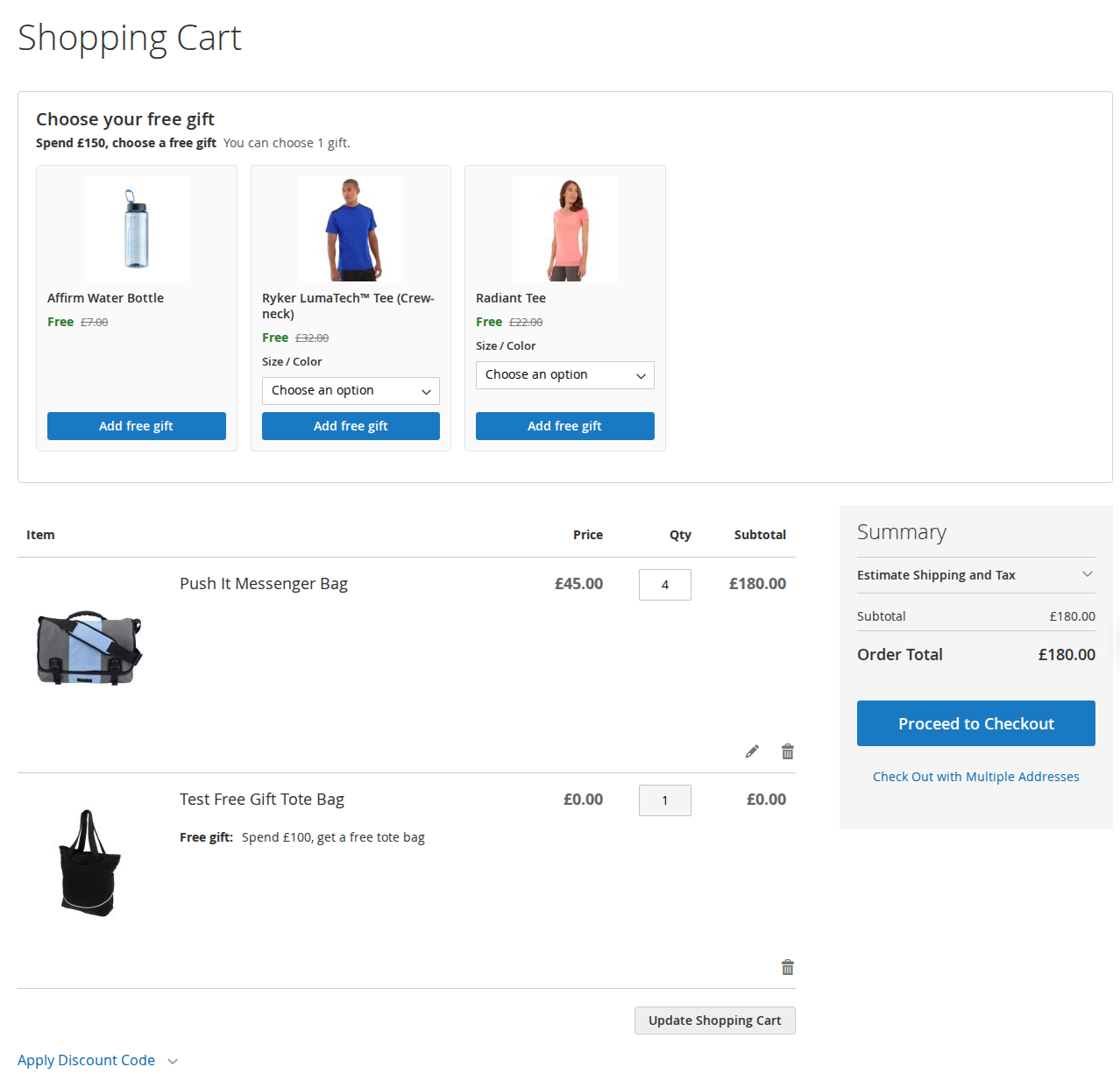
A few behaviours keep the cart honest. The gift quantity is set by the rule and the shopper cannot raise it. If they remove an automatic gift, it stays removed for that cart, and the cart page offers to add it back. That is the default; set "Add Removed Gifts Again" to Yes if you would rather the gift came back whenever the cart changes. If the cart stops qualifying, because an item is removed or a coupon is taken off, the gift line goes and the cart says "The free gift (name) has been removed because the offer no longer applies to your cart." Gifts that are out of stock, disabled or not on the website are skipped.
The rule can also do "buy X get Y" with a different product (for every two qualifying items, one gift, up to a maximum per cart), and the gift does not have to be free: it can be a percentage off, an amount off or a fixed price.
Totals, tax and the order
The gift is its own cart line, never merged with the same product bought at full price, and it is priced with a custom price: zero for a free gift, or the gift price you set. Because the price is on the line rather than spread over other items as a discount, the subtotal, tax and grand total come out right in every currency, and the other items keep their normal prices on the order. Gift lines are not discounted again by other rules and do not count towards rule conditions, so a £30 gift cannot lift a £90 basket over a £100 threshold.
The line is labelled "Free gift" in the cart, the checkout summary, the order in the customer account and the admin, and in order, invoice and credit memo emails and PDFs, so a £0 line on an invoice explains itself. A Gifts Given report lists each gift by order, rule, SKU and regular value, so you can see what the offer cost. Gift lines are checked again whenever totals are collected, including through REST and GraphQL, and "Reorder" will not add a former gift as a paid line.
Refunds and returns: decide before the first order
The module does nothing special at refund time, and Magento does not either. The gift is an order line at its gift price, so refunding it returns that amount, usually nothing. If the customer returns £40 of a £104 order, Magento refunds the £40 of goods and the gift stays with them unless you do something. Whether that is fine is a policy decision, not a software one. Some shops let the customer keep the gift, some ask for it back, some deduct its value. If you deduct, the credit memo's Adjustment Fee field is where Magento lets you do it by hand. Whatever you choose, put it in your returns terms next to the offer.
Stock needs the same thought. When stock is reduced at order placement, the credit memo form shows a Return to Stock box per line, and the setting "Automatically Return Credit Memo Item to Stock" is No by default3. If gifts come back unopened, tick it for the gift line too, or your gift stock will drift.
There are also limits to know: orders created in the admin do not get gifts added, multishipping checkout is not supported for gift lines, Hyvä Checkout is not supported (the Luma checkout fallback is), and bundle, grouped and downloadable products with links cannot be gifts.
If you want gift offers that add themselves, explain the threshold and label the line all the way to the credit memo, the Free Gift module page has the full setup and screenshots.
Sources
- Adobe Commerce Admin documentation, "Cart price rule example: buy this get that", https://experienceleague.adobe.com/en/docs/commerce-admin/marketing/promotions/cart-rules/price-rules-cart-buy-this-get-that, checked 9 October 2026. ↩
- Adobe Commerce Admin documentation, "Free gift promotion", https://experienceleague.adobe.com/en/docs/commerce-admin/marketing/promotions/cart-rules/price-rules-cart-free-gift, checked 9 October 2026. ↩
- Magento Open Source 2.4.9 source code,
app/code/Magento/CatalogInventory/etc/config.xmlandetc/adminhtml/system.xml(settingcataloginventory/item_options/auto_return, default 0) andapp/code/Magento/Sales/Block/Adminhtml/Order/Creditmemo/Create/Items.php, checked 9 October 2026. ↩
From our shop
Related Products
-
Free Gift
Free gift offers as ordinary cart price rules: add gifts automatically or let customers choose, with a "Spend £X more" notice and gift lines labelled everywhere.
- Version v1.2.2
$169
