Free gift with purchase for Magento 2 cart price rules: free products added automatically or chosen by the customer, spend-more notices, gift labels and a report of gifts given. Luma and Hyvä.
The last three are only needed in production mode.
Prefer a zip? Every version you are entitled to can be downloaded from My modules. More about Composer access
User guide
How to set up and use Free Gift
For version 1.2.3. The same guide comes with the module, in docs/user-guide.md.
Give free or discounted gifts with ordinary cart price rules. Gifts are added to the cart automatically or chosen by the customer on the cart page, and a "Spend £X more to get a free gift" notice shows how close the cart is. This guide covers installation, settings, setting up offers, what customers see, the report and the command line.
composer config repositories.softaware composer https://repo.softawarecommerce.com
composer config --auth http-basic.repo.softawarecommerce.com PUBLIC_KEY PRIVATE_KEY
composer require softaware/module-free-gift
bin/magento setup:upgrade
bin/magento setup:di:compile # production mode only
bin/magento setup:static-content:deploy # production mode only
bin/magento cache:flush
On Hyvä, run your usual Tailwind build after installing (the module registers itself for Hyvä's Tailwind source scanning). The module is off after installation: switch it on under General > Enabled (section 3).
To update later: composer update softaware/module-free-gift, then the same bin/magento commands.
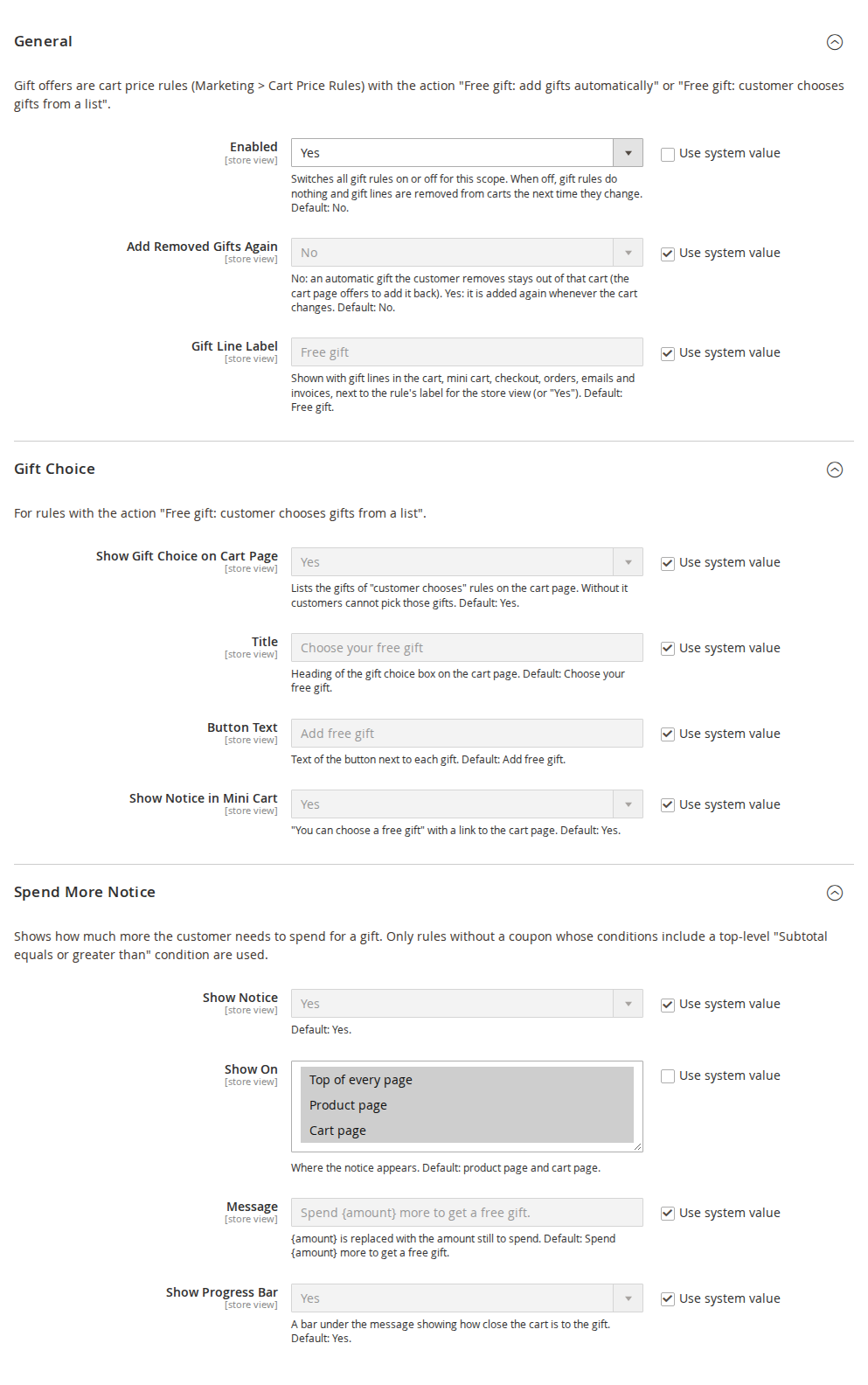
3. Settings
Stores > Configuration > Softaware > Free Gift (also Softaware > Free Gift > Configuration). All settings can be set per website and store view.
Free Gift settings
General
Setting
Default
What it does
Enabled
No
Switches all gift rules on or off for this scope. When off, gift rules do nothing and gift lines are removed from carts the next time they change.
Add Removed Gifts Again
No
No: an automatic gift the customer removes stays out of that cart (the cart page offers to add it back). Yes: it is added again whenever the cart changes.
Gift Line Label
Free gift
Shown with gift lines in the cart, mini cart, checkout, orders, emails and invoices, next to the rule's label for the store view (or "Yes").
Gift Choice
For rules with the action "Free gift: customer chooses gifts from a list".
Setting
Default
What it does
Show Gift Choice on Cart Page
Yes
Lists the gifts on the cart page. Without it customers cannot pick those gifts.
Title
Choose your free gift
Heading of the gift choice box.
Button Text
Add free gift
Text of the button on each gift.
Show Notice in Mini Cart
Yes
"You can choose a free gift" with a link to the cart page.
Spend More Notice
Setting
Default
What it does
Show Notice
Yes
Shows how much more the customer needs to spend for a gift.
Show On
Product page, Cart page
Top of every page, Product page, Cart page.
Message
Spend {amount} more to get a free gift.
{amount} is replaced with the amount still to spend.
Show Progress Bar
Yes
A bar under the message showing how close the cart is to the gift.
The notice uses active gift rules without a coupon (for the shopper's website and customer group) whose conditions contain a top-level "Subtotal (Excl. Tax)", "Subtotal (Incl. Tax)" or "Subtotal after discount" with "equals or greater than" or "greater than". Other conditions of those rules are not evaluated for the notice.
4. Setting up an offer
Marketing > Cart Price Rules > Add New Rule (also Softaware > Free Gift > Gift Rules (Cart Price Rules)). Enter a name, websites, customer groups and, if you want, a coupon, dates and uses per customer.
Conditions, for example "Subtotal (Excl. Tax) equals or greater than 100".
Actions > Apply: "Free gift: add gifts automatically" or "Free gift: customer chooses gifts from a list". The discount fields are hidden for these actions. Optionally, "Apply the rule only to cart items matching the following conditions" decides which items count for For Every X Items Bought.
Free Gift section: the gift settings below.
Labels (optional): a store label, shown next to "Free gift" on gift lines and above the gift choice.
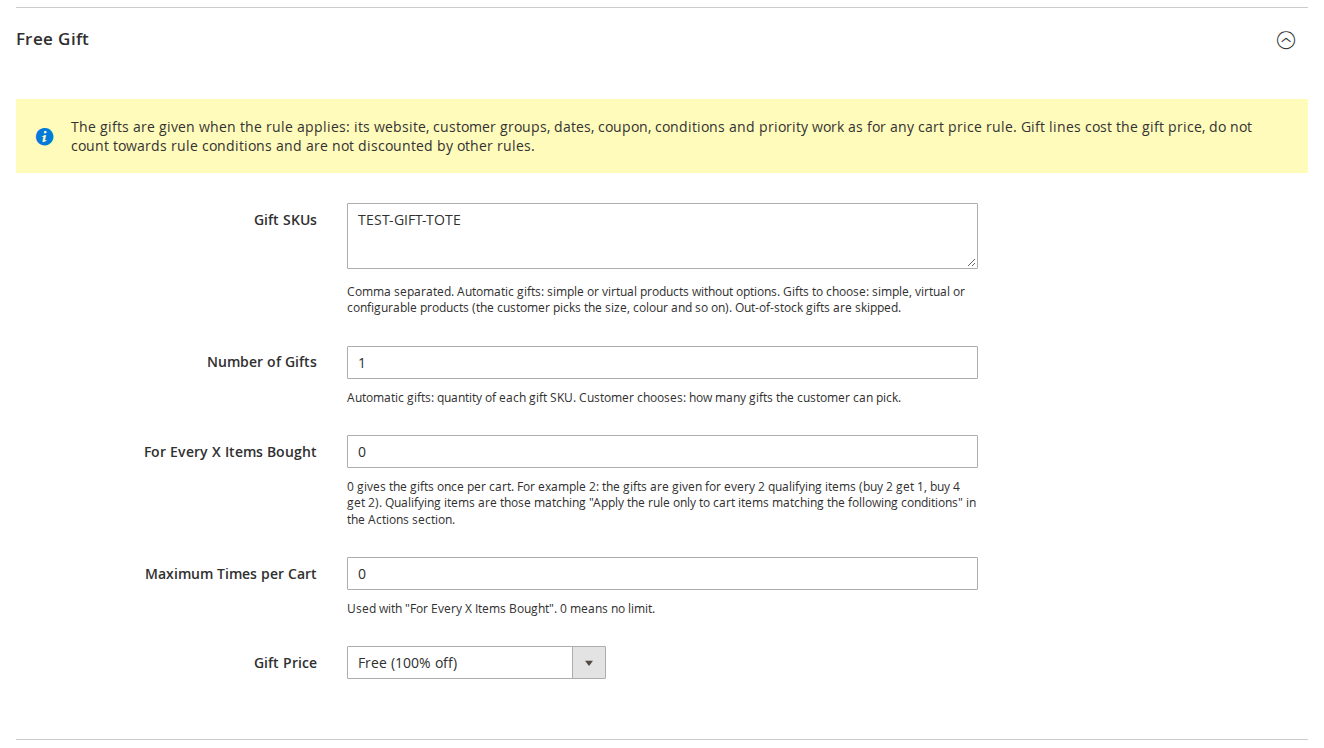
Free Gift section of a cart price rule
Field
What it does
Gift SKUs
Comma separated. Automatic gifts: simple or virtual products without options. Gifts to choose: simple, virtual or configurable products. Out-of-stock gifts are skipped.
Number of Gifts
Automatic gifts: quantity of each gift SKU. Customer chooses: how many gifts the customer can pick.
For Every X Items Bought
0 gives the gifts once per cart. For example 2: the gifts are given for every 2 qualifying items (buy 2 get 1, buy 4 get 2).
Maximum Times per Cart
Used with "For Every X Items Bought". 0 means no limit.
Gift Price
Free (100% off), Percentage off the gift price, Fixed amount off the gift price, or Gift costs a fixed price.
Gift Discount or Price
A percentage (for example 50), or an amount in the base currency for "fixed amount off" and "fixed price".
Several gift rules can apply to the same cart. Priority and "Discard subsequent rules" work as for any cart price rule.
5. What customers see
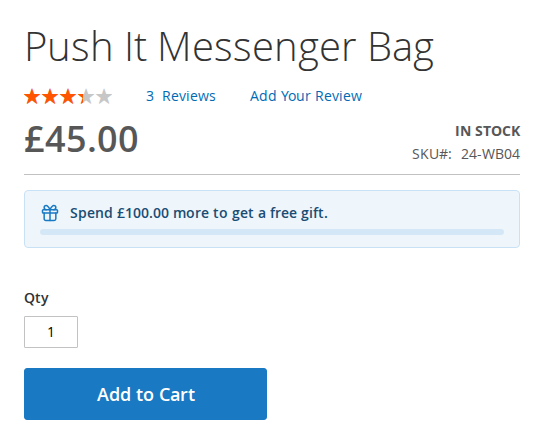
Spend-more notice. On the product page, the cart page and/or the top of every page: "Spend £100.00 more to get a free gift." with an optional progress bar.
Spend-more notice on the product page
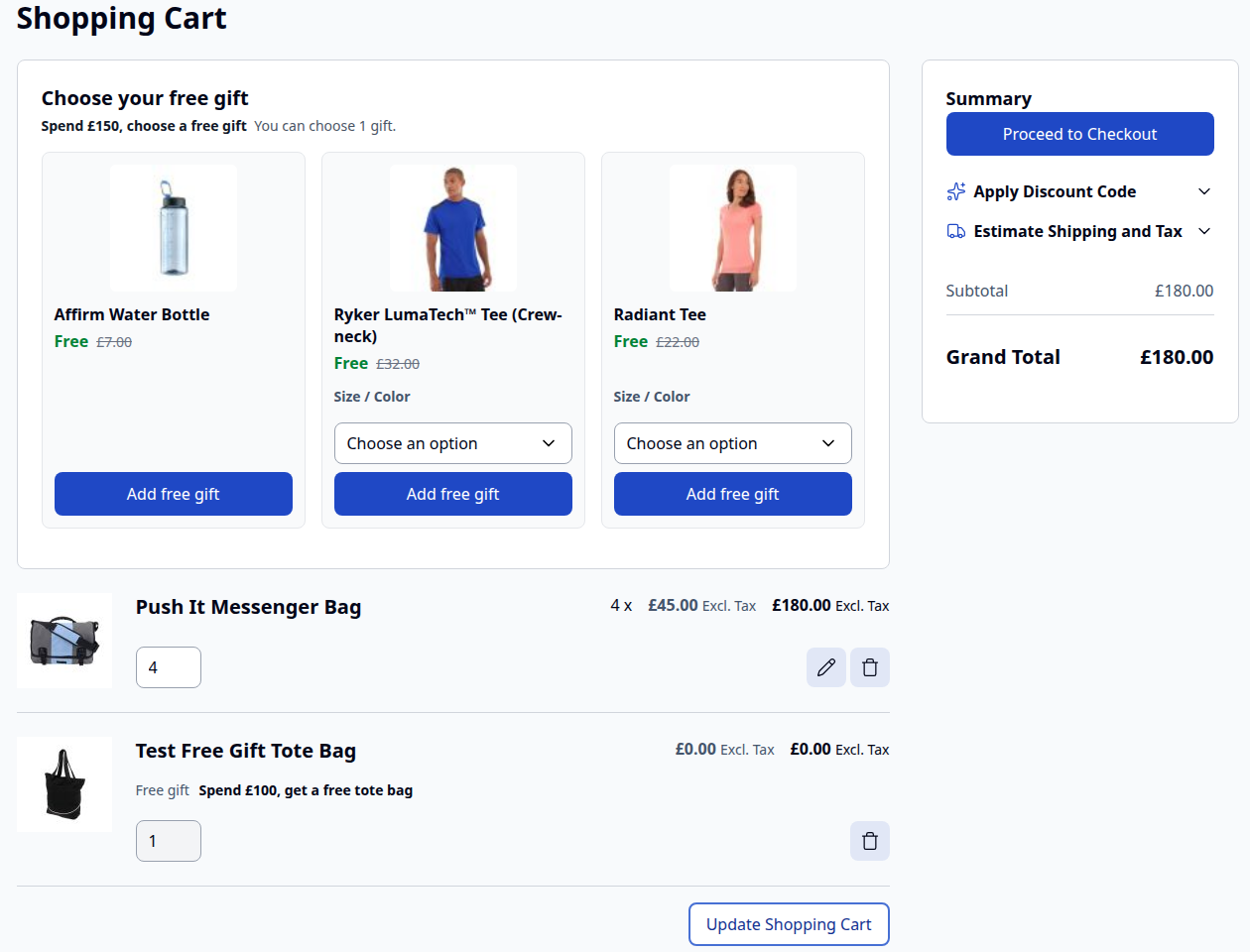
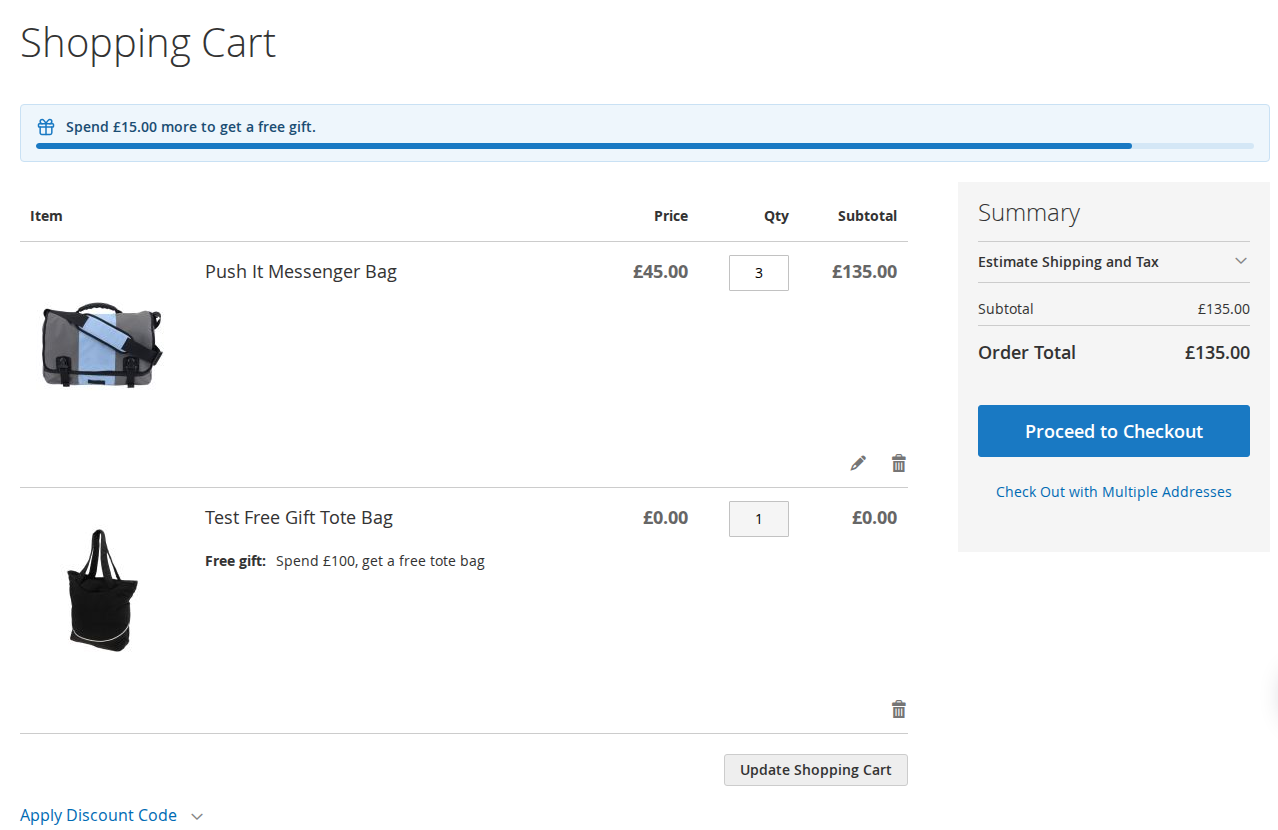
Automatic gifts. When the rule applies, the gift is added as its own cart line at the gift price, labelled "Free gift" with the rule's label. Its quantity cannot be changed. If the customer removes it, it stays removed for that cart and the cart page offers Add it back (unless "Add Removed Gifts Again" is Yes).
Cart with an automatic gift
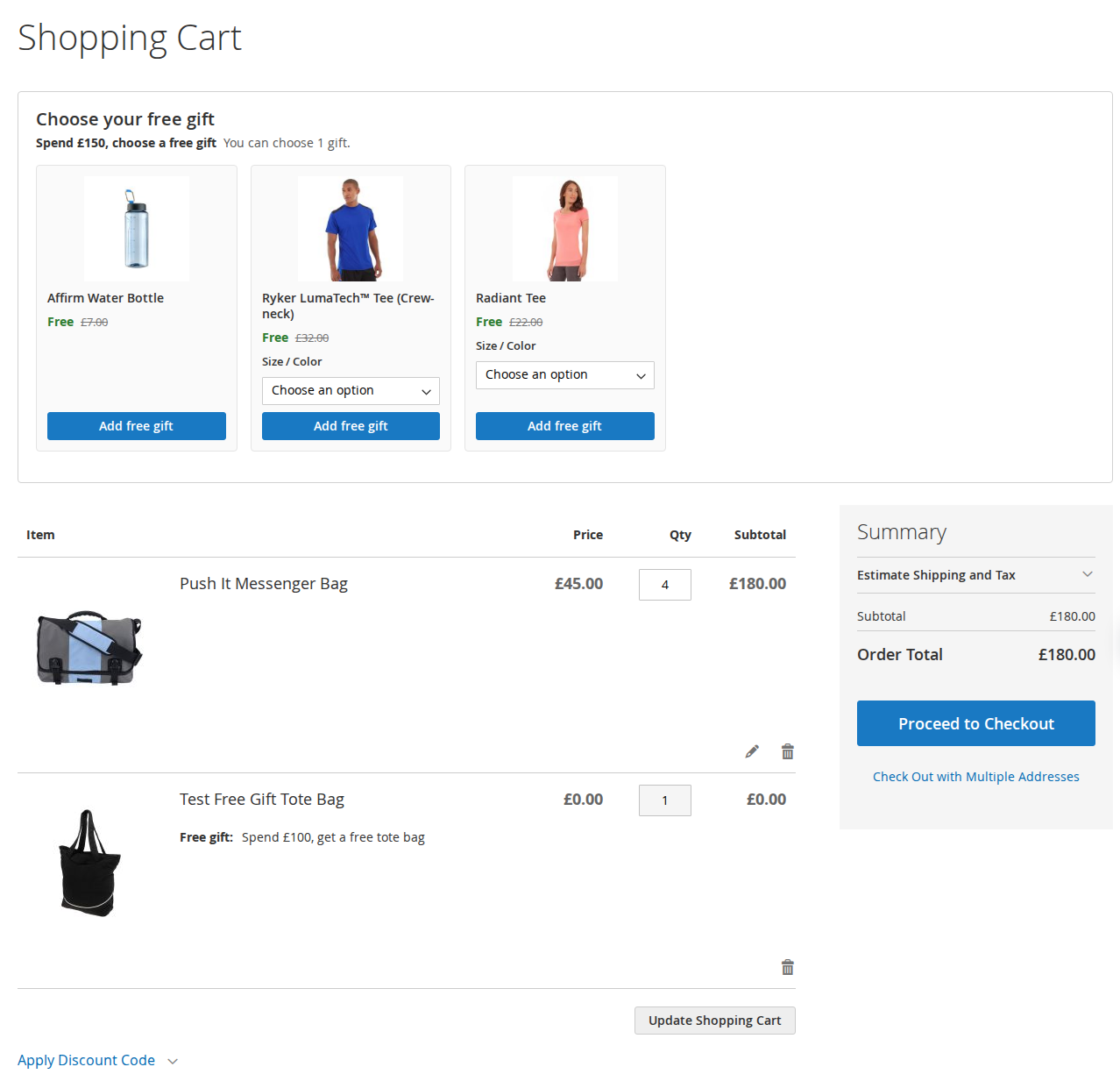
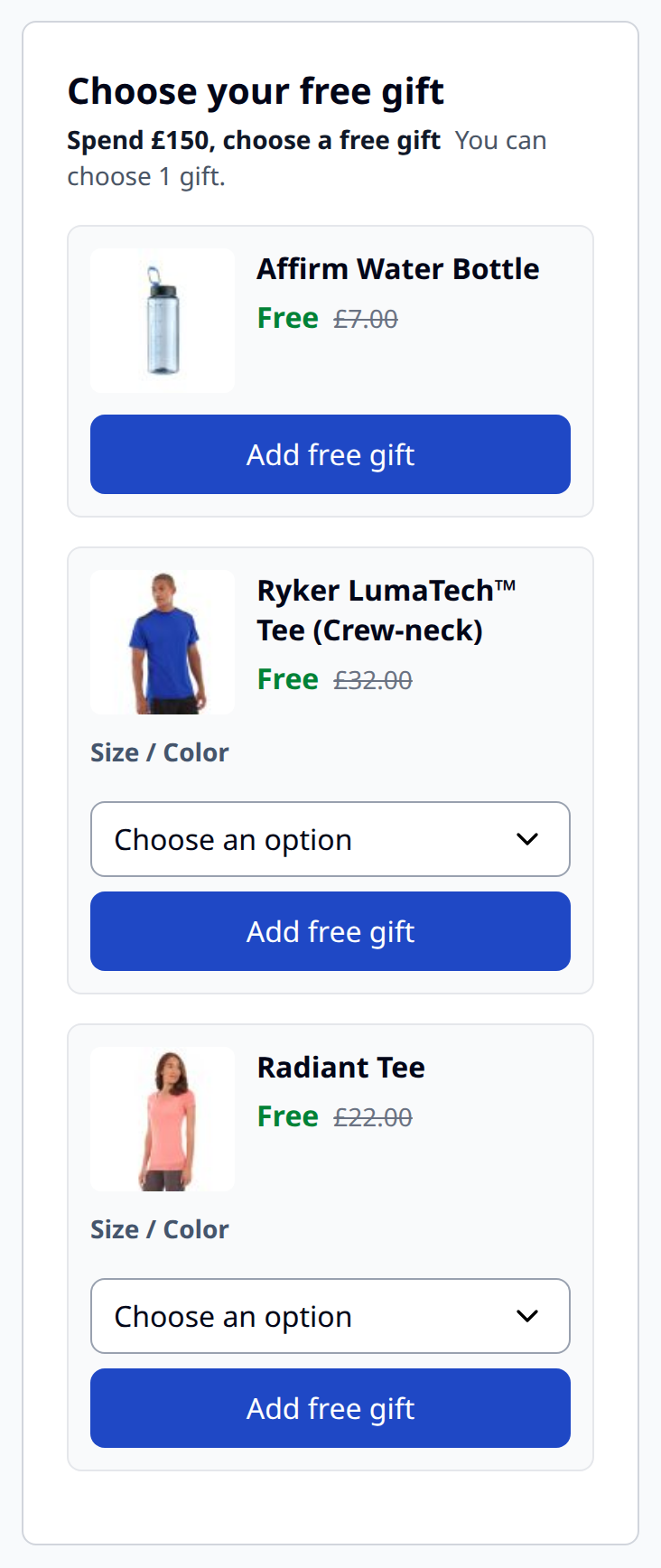
Gift choice. For "customer chooses" rules, the cart page shows the gifts with their regular price crossed out and an Add free gift button. Configurable gifts have a size and colour choice. The mini cart says "You can choose a free gift" with a link to the cart.
Hyvä
Mobile
When the offer stops applying. If the cart no longer qualifies (subtotal too low, coupon removed, another customer group after sign-in), the gift line is removed and the cart explains why.
Checkout, orders and documents. Gift lines keep their "Free gift" label in the checkout summary, the customer's and the admin's order views, order, invoice and credit memo emails and PDFs.
Guests and customers. Both get gifts. When a guest signs in, the carts are merged without duplicate gifts.
6. Gifts Given report
Softaware > Free Gift > Gifts Given lists every gift line of every order: purchase date, order, gift rule (linked, or "Deleted rule (ID n)"), gift SKU, gift, quantity, regular value, customer email and name, order status and store. It has filters and CSV and XML export.
7. Command line
bin/magento softaware:free-gift:rules [--rule=ID]
Lists the gift rules with their gift SKUs and whether each gift can currently be given (exists, enabled, in stock). Use it after catalogue changes to find offers whose gifts can no longer be added.
8. Permissions (ACL)
Resource
Allows
Softaware > Free Gift
The Free Gift menu
Gifts Given Report
The report and its export
Free Gift Configuration
The configuration section
Marketing > Cart Price Rules (Magento)
Creating and editing gift rules
9. Limitations
Gifts are managed in storefront, REST and GraphQL carts. Orders created in the admin do not get gifts added.
Multishipping checkout is not supported for gift lines.
Hyvä Checkout is not supported; the Luma checkout fallback is.
Bundle, grouped, downloadable products with links and products with required custom options cannot be gifts.
The spend-more notice is based on subtotal conditions only (see section 3).
Gift settings are not part of the cart price rule REST API; they are kept when a rule is saved through the API.
10. Troubleshooting
Problem
Solution
No gift is added
Check General > Enabled for the store view, that the rule is active for the website and customer group, and that its conditions are met. Run bin/magento softaware:free-gift:rules to check the gift SKUs.
A gift is skipped
The gift product is out of stock, disabled, not in the website, or a type that cannot be a gift.
No gift choice on the cart page
Check Gift Choice > Show Gift Choice on Cart Page and that the rule's action is "customer chooses".
The spend-more notice does not show
The rule needs a top-level subtotal condition and no coupon; check Show On and flush the cache.
The gift appears twice
It cannot be added as a normal paid line through Reorder or a wish list; if a customer adds the same product from the catalogue, it is a separate, paid line by design.
Before uninstalling, deactivate or delete the gift rules: their action is provided by this module. The table softaware_free_gift_rule and the columns quote.softaware_free_gift, quote_item.softaware_gift_rule_id and sales_order_item.softaware_gift_rule_id keep their data until you drop them.
Changelog
Release notes
1.2.3
Latest
Gifts Given grid: the "Purchased From" column was mis-indented (Magento's store column indents website, store and store view with non-breaking spaces, which wrapped badly in the narrow column). It now shows the store view name with the website name below it, left-aligned; a deleted store view shows "Deleted store view (ID n)".
1.2.2
Product listing, FAQ and user guide (docs/)
1.2.1
Admin polish. Gifts Given report: one-line introduction, an empty state with "Add Gift Rule" instead of an empty table, the gift rule shown by name and linked to the rule ("Deleted rule (ID n)" when it no longer exists, before the column was empty), quantities without trailing zeros ("1" instead of "1.0000").
Settings: every field says its default, "Use system value" is available on all fields, text fields that must not be empty are validated, the General group opens first and the "Show On" list is three rows high instead of ten.
Free Gift section of the cart price rule form: space between the info box and the first field.
1.2.0
Requires softaware/module-core instead of softaware/module-base. The admin menu and ACL now sit under Softaware_Core::core ("Softaware"); roles that had access keep it (migrated by module-core). After updating all SoftAware modules, softaware/module-base can be removed.
1.1.0
Notice in the cart when a gift is removed because its offer no longer applies to the cart (Luma and Hyvä).
"Reorder" (and adding a gift from a wish list) added the former gift as a normal, paid line next to the gift the offer adds again; such requests are now refused with a message.
The spend-more notice on the cart page could show the amount from before the last cart change (browser data) until the customer data section reloaded; the cart page now keeps its server-rendered value (Luma and Hyvä).
1.0.1
Removed unused classes and JavaScript files left over from the earlier implementation (no change in behaviour).
1.0.0
Cart price rule actions "Free gift: add gifts automatically" and "Free gift: customer chooses gifts from a list", with gift SKUs, number of gifts, "for every X items bought", maximum times per cart and gift price (free, percentage off, fixed amount off, fixed price).
Gift lines kept in line with the rules whenever the cart changes; fixed gift quantities; removed automatic gifts stay removed for the cart (configurable) and can be added back from the cart page.
Gift choice on the cart page (configurable gifts with variant choice) and mini cart notice, Luma and Hyvä.
"Spend {amount} more to get a free gift" notice with progress bar on the top of the page, product page and cart.
"Free gift" label on gift lines in cart, mini cart, checkout, orders, emails, invoices and PDFs.
Gifts Given report (Softaware > Free Gift > Gifts Given) with CSV/XML export.
CLI softaware:free-gift:rules.
Configuration under Stores > Configuration > Softaware > Free Gift.
Replaces the pre-1.0 development version (action "sa_free_gift" with one promo SKU). Existing rules of that version are converted to "add gifts automatically" by a data patch.
FAQ
Questions, answered
Something else on your mind? The developers who wrote the module answer before and after you buy.
Create a cart price rule under Marketing > Cart Price Rules and choose one of the two gift actions under Actions > Apply: "Free gift: add gifts automatically" or "Free gift: customer chooses gifts from a list". Then enter the gift SKUs in the rule's Free Gift section. Websites, customer groups, dates, coupons, conditions and priority work exactly as for any other cart price rule.
What is the difference between the two actions?
"Add gifts automatically" puts the gift SKUs in the cart as soon as the rule applies. "Customer chooses gifts from a list" shows the gifts on the cart page and the customer picks as many as the rule allows.
Can I run "buy X, get Y" offers?
Yes. Set For Every X Items Bought, for example 2: the gifts are given for every 2 qualifying items (buy 2 get 1, buy 4 get 2). The rule's "Apply the rule only to cart items matching the following conditions" decides which items count. Maximum Times per Cart caps the number of times.
Does the gift have to be free?
No. Gift Price can be free (100% off), a percentage off the gift price, a fixed amount off, or a fixed price, so offers such as "buy one, get the second at 50%" are possible.
Which products can be gifts?
Simple and virtual products (automatic or chosen) and configurable products (chosen, with a size or colour choice on the cart page). Bundle, grouped, downloadable products with links and products with required custom options cannot be gifts. Gifts that are out of stock, disabled or not assigned to the website are skipped.
Can customers change the quantity of a gift?
No. The quantity is set by the offer: the quantity field of a gift line is read-only and larger quantities are reset with a notice.
What happens if a customer removes an automatic gift?
It stays removed for that cart and the cart page offers "Add it back". If you prefer, set Add Removed Gifts Again to Yes and the gift is added again whenever the cart changes.
What happens when the cart no longer qualifies?
The gift line is removed and the cart shows "The free gift (name) has been removed because the offer no longer applies to your cart." This happens for any reason the rule stops applying, for example the subtotal falls below the threshold or a coupon is removed.
How does the "Spend £X more" notice work?
It is based on active gift rules without a coupon whose conditions contain a top-level subtotal condition ("equals or greater than" or "greater than"). It shows the amount still to spend and, optionally, a progress bar, on the product page, the cart page and/or the top of every page. Other conditions of those rules are not evaluated for the notice. It is loaded through customer data, so pages stay in the full-page cache.
Are totals, tax and currencies right?
Gift lines are separate cart lines priced through a custom price (0 for free gifts), so subtotal, tax and grand total are right in every currency. Gift lines are not discounted by other rules and do not count towards any rule conditions, so a gift cannot keep its own rule valid.
Can a gift be kept through the API or by reordering?
Gift lines are checked again whenever cart totals are collected, also through REST and GraphQL (cart items, coupons, payment information and order placement). "Reorder" and adding a former gift from a wish list are refused with a message; the offer adds the gift again itself when it applies.
Does it work with Hyvä?
Yes. Hyvä templates are included for the gift choice, the notice and the mini cart (Hyvä 1.3 and later). Hyvä Checkout is not supported; the Luma checkout fallback is.
What is not supported?
Orders created in the admin do not get gifts added, multishipping checkout is not supported for gift lines, and gift settings are not part of the cart price rule REST API (they are kept when a rule is saved through the API).
Which Magento and PHP versions are supported?
Magento Open Source and Adobe Commerce 2.4.7 to 2.4.9, PHP 8.2 to 8.5.
A free gift offer goes wrong when the shopper cannot tell whether they qualify. How to set up gift rules on Magento 2 that are clear in the cart and tidy on the order and the refund.
Read the guide →
We value your privacy
We use necessary cookies to run this site and, with your permission, Google Analytics to understand how it is used. You can accept analytics, reject it or choose in the settings. Cookie policy
Cookie preferences
Choose which cookies you allow. Necessary cookies are always on because the shop cannot work without them. You can change your choice at any time with the "Cookie settings" link.
Always on
Needed for the basket, checkout, login and security. They do not track you.
Google Analytics: how many people visit, which pages they read and how they found the site. It sets the _ga cookies and sends usage data to Google.
Sign in with
You are using the browser built into another app. Google does not allow sign-in there, and other providers may not work either. Please open this page in your browser, for example with "Open in browser" in the app's menu.