Sale, new and low-stock labels that keep themselves up to date in Magento 2
Hand-made sale and stock badges go out of date the day the price or stock changes. Here is what Magento shows on its own and how rule-based labels fill the gap.

Say you sell outdoor clothing. In spring someone on the team adds a red "SALE" corner to the photos of thirty jackets, or puts them in a "Sale" category that a theme block turns into a badge. The sale ends in May. In July a customer writes in, a little annoyed, because the jacket with the sale badge costs the full price at checkout. Nobody did anything wrong. The badge was simply a separate thing that someone had to remember to remove.
The fix is to stop treating a badge as something you put on a product, and to let it follow the facts the shop already has: the price, the stock level and the dates. A label that says "Sale" should appear because the product is cheaper than its regular price today, and go away when it is not. That is the idea behind rule-based product labels, and it is what this post is about.
What Magento already shows without an extension
Magento has the information, but it only uses some of it on the storefront, and not as badges.
Discounts are the best covered. A special price on the product, or a catalogue price rule ("Catalog price rules can be used to offer products to buyers at a discounted price, based on a set of defined conditions"1), makes Luma show the reduced price with the regular price next to it, on listings and on the product page. That is honest and automatic. What it does not do is put anything on the product image.
"New" exists as data. Every product has the attributes "Set Product as New from Date" and "Set Product as New to Date". In the core code these dates are used by the block behind the "Catalog New Products List" widget, which lists new products. They do not add a "New" badge to the product anywhere.
Low stock has a setting, Only X left Threshold, under Stores > Configuration > Catalog > Inventory. Adobe's documentation says: "For example, if set to 3, the message appears when there are three or fewer of an item in stock."2 In the core layouts that message is added to the product page, not to category listings.
So if the crossed-out price and an "Only 3 left" line on the product page are all you want, you do not need anything else. The gap is on listings and images, and in anything that combines conditions: a badge only for discounts of 20% or more, only for trade customers, only for a weekend.
Rules instead of tagging
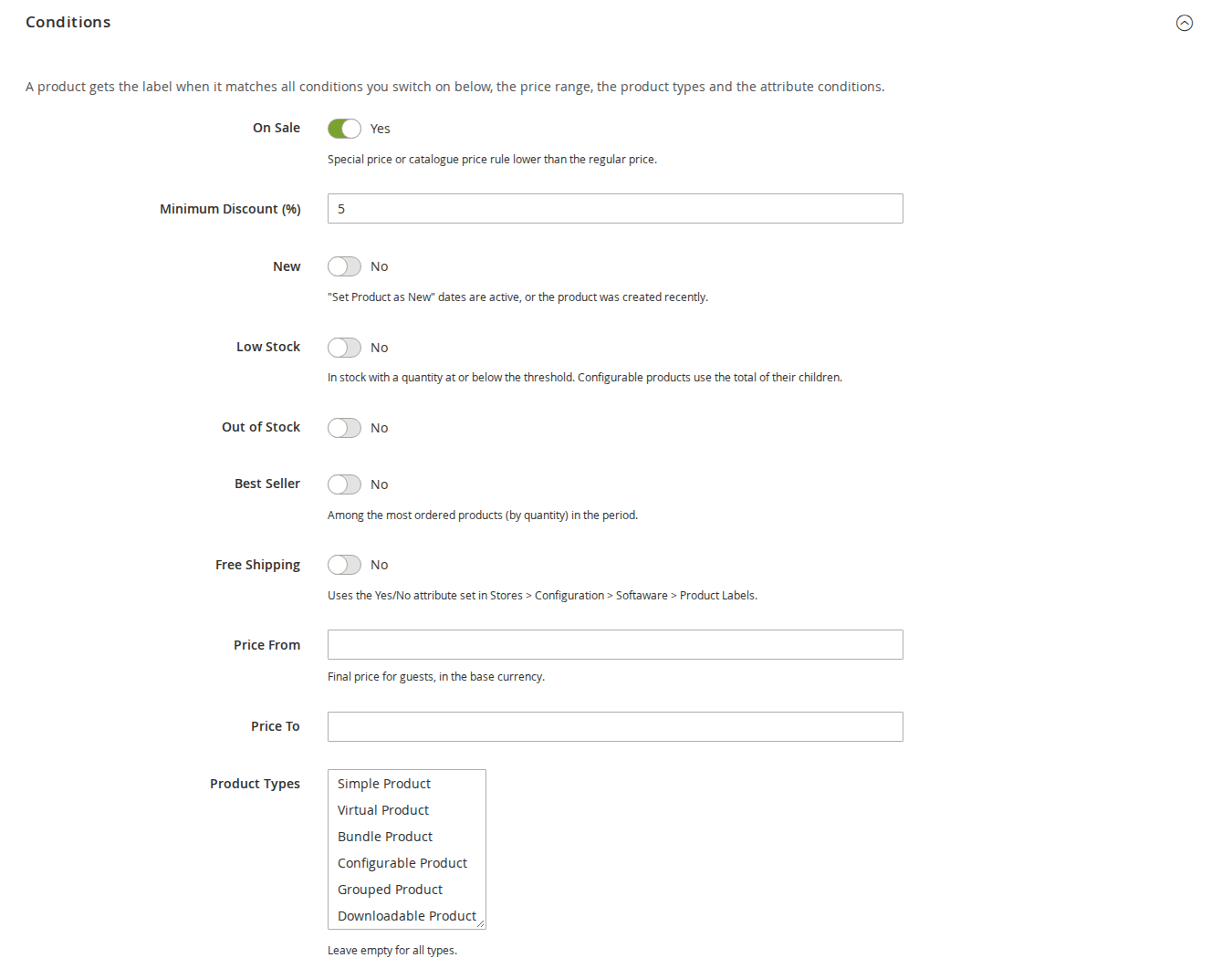
This is how our Product Labels module approaches it. A label is a small rule with an appearance. In Softaware > Product Labels > Manage Labels you give it a name, the store views and, if you like, customer groups and From/To dates. Then you switch on the conditions it needs. The main ones are:
- On Sale: a special price or catalogue price rule below the regular price, with an optional minimum discount in per cent.
- New: the "Set Product as New" dates are active, or the product was created in the last N days.
- Low Stock: in stock with a quantity at or below a threshold you set per label. Configurable products use the total of their in-stock children. Out of Stock is a separate condition.
- Best Seller: the top N products by ordered quantity over the last X days.
There is also a Free Shipping condition based on a Yes/No attribute you choose, a price range, product types, and the same condition builder that catalogue price rules use (attribute set, category, SKU, any attribute). A product gets the label when it matches every condition you switched on.
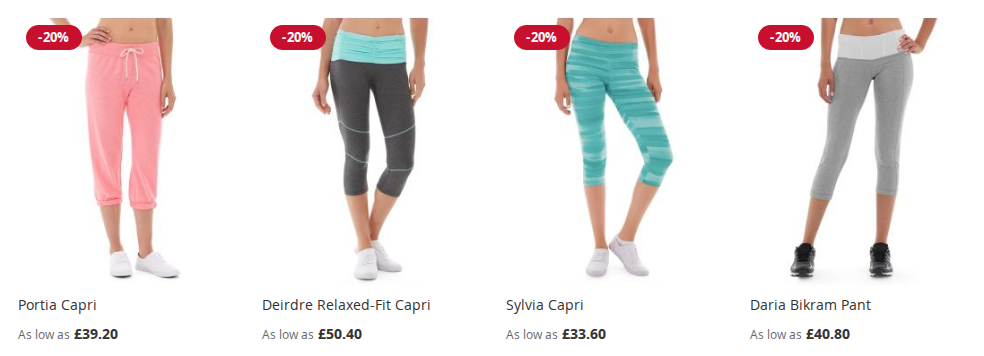
The label text can carry variables, so one label covers the whole catalogue: -{discount_percent}% shows the real discount of each product, Only {qty} left the quantity, and {attribute:material} any attribute value. The discount is worked out when the page is rendered, from the regular and final price Magento calculates for that visitor, so it matches the price they are shown. Appearance is set separately for listings and the product page: text or an image, a shape, colours, size and one of nine positions on the image, or a place under the product name or after the price.
When several labels match, priority decides the order, "Stop Further Labels" hides the ones after it, and a setting limits the number per product. That last one matters more than it sounds: a jacket that is new, on sale, nearly sold out and a best seller does not need four stickers.
Why the labels are indexed
The obvious way to build this is to check every rule for every product while the category page renders. With a few labels and a full page of products that adds up quickly, so we did not do it. Labels are assigned by an indexer, like Magento's own price and catalogue rule indexes. The category page reads the stored result with one query per product list. Only rows that actually changed are written, and only the page cache of products whose labels changed is cleaned, so a label change does not empty the whole cache.
Some conditions change without anyone saving a product: time passes, orders reduce stock, sales figures move. For those there is an hourly cron job that re-checks labels using New, Low Stock, Out of Stock or Best Seller, plus a full rebuild every night. Customer group, dates and the real discount are checked at render time instead. When a dated label starts or ends, the hourly job cleans the page cache of its products, so cached pages follow within the hour. If you want to know why a product has or lacks a label, bin/magento softaware:product-labels:check <sku> lists what the index holds for it per store view.
Where it stops
A few limits are worth knowing before you plan a campaign around labels.
Stock data is read from the CatalogInventory tables. Setups with Multi-Source Inventory have not been tested. In "Update by Schedule" mode, stock changes from orders reach the labels with the hourly refresh, not the second the order is placed, and Hyvä caches product list items for up to an hour on top of that. An "Only 2 left" label can therefore be an hour behind on a busy day.
Listing labels are attached to product images built through Magento's product image factory. Themes and sliders that use their own image IDs can be added in the configuration; images built some other way cannot get labels. Labels are not added to the cart, mini cart, wishlist or compare thumbnails. Best sellers are counted across all store views.
Labels work on Luma and Hyvä. On Hyvä the label styles are added to the theme's Tailwind build, so you rebuild the theme CSS once after installing, as with most Hyvä-ready modules (we wrote about what to check in Hyvä compatibility of Magento extensions).
If you would rather see it than read about it, the Product Labels page has links to the Luma and Hyvä demo stores and the admin demo, along with the user guide and the full list of conditions.
Sources
- Adobe Experience League, "Catalog price rules", https://experienceleague.adobe.com/en/docs/commerce-admin/marketing/promotions/catalog-rules/price-rules-catalog, checked 9 October 2026. ↩
- Adobe Experience League, "Catalog > Inventory", https://experienceleague.adobe.com/en/docs/commerce-admin/config/catalog/inventory, checked 9 October 2026. ↩
From our shop
Related Products
-
Product Labels
Rule-based product labels for Luma and Hyvä: sale, new, low stock and best seller badges on category pages, widgets and the product page, assigned by an indexer.
- Magento 2.4.7 – 2.4.9
- Hyvä
- Luma
- Version v1.2.2
$149