Changing prices on hundreds of Magento products without a CSV import
Magento's own tools can set one price for many products, or import a spreadsheet. Neither can add 5% and round to .99, and neither can undo. Here is the gap and how we filled it.

Your supplier puts up prices by 5% on the first of the month. You have 340 products from that supplier in Magento, all with different prices, and you want each one 5% higher and ending in .99. In the admin you can filter the product grid down to exactly those 340 products in a minute. Then you look at the Actions menu and realise none of the options does what you need.
So most teams do the usual thing: export the catalogue, open it in a spreadsheet, write a formula, round the results, paste them back, save a CSV and import it. It works, and it is also where the trouble starts. A formula dragged one row too far, a column that the spreadsheet turned into dates, a file saved with the wrong delimiter. And when a customer emails to ask why the price changed overnight, there is no quick way to see what the price was before or to put it back.
What Magento gives you
Magento has two built-in ways to change many products at once, and both are good at what they were made for.
The first is Update attributes on Catalog > Products: tick the products, choose Actions > Update attributes, and set new values for the attributes you tick.1 For price, that means one fixed value for every selected product. That is right for "set all these to 9.99", and wrong for "add 5% to each". Magento writes these changes in the background through the product_action_attribute.update message queue consumer,2 so the consumers have to be running for the change to appear. There is no preview and no undo.
The second is the import under System > Data Transfer > Import, with the "Add/Update" behaviour. It handles almost anything, which is why it is the standard answer. But the arithmetic happens in your spreadsheet, outside Magento, and Magento only sees the final numbers. The import does not keep the old values for you, so your undo is whatever export you remembered to save first.
If what you want is a temporary sale, you may not need to touch the price attribute at all. A catalogue price rule in core Magento can take a percentage off a set of products for a date range and then stop, and the original prices never change. For permanent price changes, though, the rule approach gets messy over time, and you are back to editing prices.
Doing the sum inside Magento
This gap is the reason we built Mass Product Actions. It adds more actions under Actions > More actions on the same product grid, and leaves Magento's own actions as they are. Update price takes a change (set to, increase or decrease by an amount, increase or decrease by a percentage) and a rounding rule: none, or to the nearest, up to or down to an ending of .99, .95, .90, .50, .49 or .00. The same arithmetic is available for cost, and special price can be set as a percentage or an amount below the price, with or without dates.
The step that saves the most worry is the Preview button. Before anything is written, it shows the current price and the new price for the first ten selected products, or the reason a product would be skipped. Configurable products and bundles with dynamic prices are skipped on purpose, because their prices come from their variants or items, and the preview tells you so.
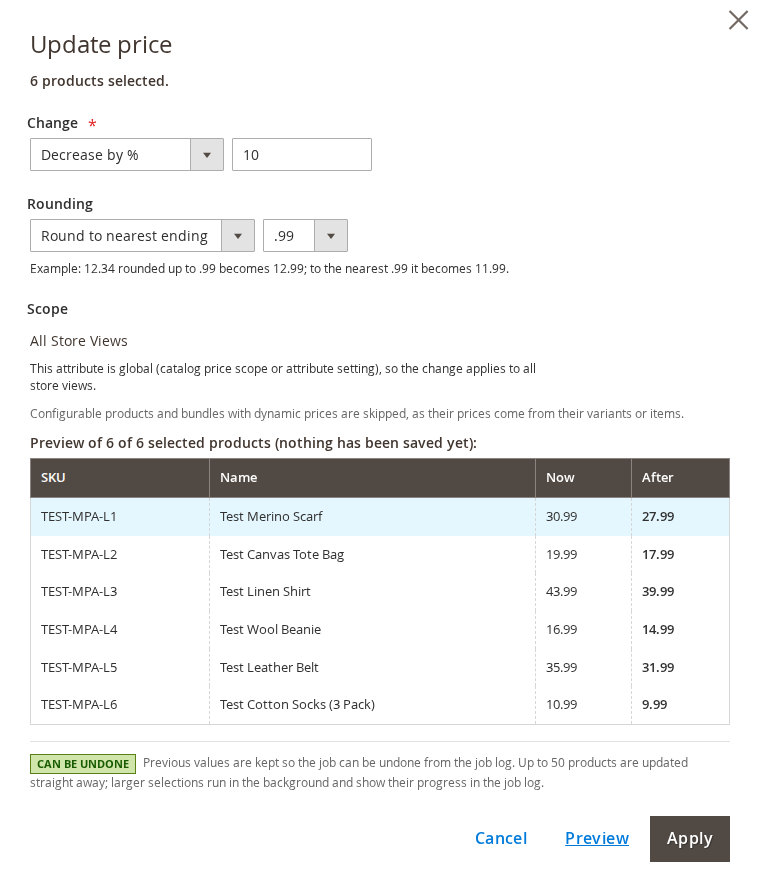
The change itself goes through the same updateAttributes() method that Magento's own Update attributes action uses, so other modules that listen for those events still see it. Afterwards the module runs the price, catalogue rule and other affected indexers for the changed products, or leaves them to Magento when your indexers are set to "Update by Schedule", and cleans the page cache for those products. Small selections (up to 50 products by default) are done straight away; larger ones become a queued job that cron works through in batches, in a cron group of its own so that a long job does not hold up your other cron tasks. Amounts are checked too, so a typo such as 1e20 is refused instead of being written as a huge price.
Undo, and what it can and cannot do
Every run is stored as a job in Softaware > Mass Product Actions > Job Log, with who ran it, when, what it did and how many products were updated, skipped or failed. Before a job changes a product, the module keeps the old values for that product. Undo Job puts them back, as a new job of its own, so the undo is logged as well.
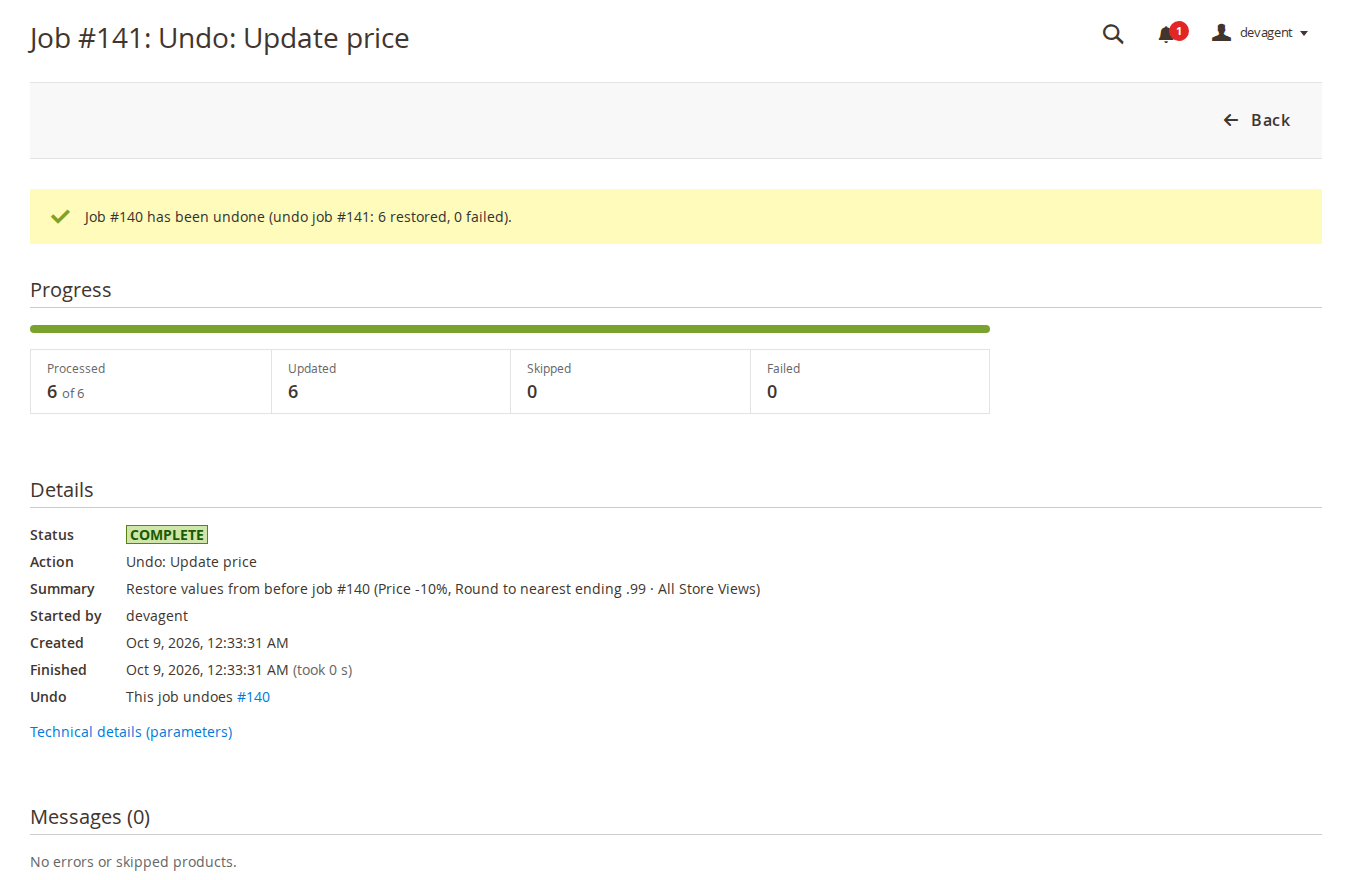
Undo is a snapshot restore, not a reverse sum. If you increased prices by 5% and then someone edited one of those prices by hand, undoing the job writes back the value from before the job and overwrites the hand edit. We made the job page warn about this: it lists later jobs that changed the same fields of the same products and have not been undone, and the undo confirmation names them. If several jobs touched the same products, undo them in reverse order.
There are limits worth knowing before you rely on it:
- Undo data is kept as long as the job, which is 60 days by default (Keep Finished Jobs For (Days) in the settings). After that, a job can no longer be undone.
- Copying custom options, copying images and duplicating products cannot be undone. The other twelve actions, including price, special price and cost, can.
- Stock changes use the default stock only, so per-source quantities with Multi-Source Inventory are not supported, and Adobe Commerce content staging is not supported.
- If PHP stops in the middle of a batch, that batch runs again when the job resumes, and its undo data then holds values that were already changed in that batch. The README states this plainly, and it is the one case where the snapshot is not the true "before".
When a CSV import is still the better tool
None of this replaces the import for everything. If your new prices come from a supplier's price list rather than a rule, the numbers already exist in a file and the import is the natural way to load them. The same goes for changing many different attributes at once, or loading prices from an ERP. Mass actions are for the case where the rule is simple to say ("these products, 5% up, end in .99") and you would otherwise build a spreadsheet only to apply it.
It is also worth checking your catalogue price scope before any bulk change. When the price scope is Global, a price change applies to all store views, whichever store view you pick; with Website scope, the change applies to every store view of that website. The module follows Magento here, and the form tells you which case applies.
If you want to try the preview and undo on sample products first, the admin demo on the Mass Product Actions page has the product grid with the extra actions and the job log.
Sources
- Adobe Commerce documentation, "Bulk updates for product attributes", https://experienceleague.adobe.com/en/docs/commerce-admin/catalog/product-attributes/create/bulk-product-attribute-update, checked 9 October 2026. ↩
- Adobe Commerce documentation, "Message queue consumers", https://experienceleague.adobe.com/en/docs/commerce-operations/configuration-guide/message-queues/consumers, checked 9 October 2026. ↩
From our shop
Related Products
-
Mass Product Actions
Fifteen extra mass actions for the Magento product grid, from price rounding to categories and links, run as jobs with a log, a preview and undo.
- Magento 2.4.7 – 2.4.9
- Hyvä
- Luma
- Version v1.2.4
$189
