Approving new customer accounts on a trade-only Magento shop
Magento Open Source lets anyone register and sign in straight away. Here is how to hold new accounts for review on a trade-only shop, and which core settings you still need to change.
Customer account approval for Magento 2 (Luma and Hyvä) for B2B, wholesale and trade-only shops: new registrations wait for admin approval, with auto-approve rules, admin and customer emails, and REST/GraphQL login blocking.
One-off payment, with 12 months of updates.
No subscription or automatic renewal. Keep using the versions included in your update period. Update and licence details
Composer package softaware/module-customer-approval
Only the customers you approve can sign in, see their account and order. Everyone else gets a clear message.
Pending and rejected customers are refused on the sign-in page, at checkout, through REST and GraphQL tokens and through password-less sign-ins.
Auto-approve your own groups and trusted email domains, and approve the rest from one queue or in bulk.
All features
Feature tour
01 / 06
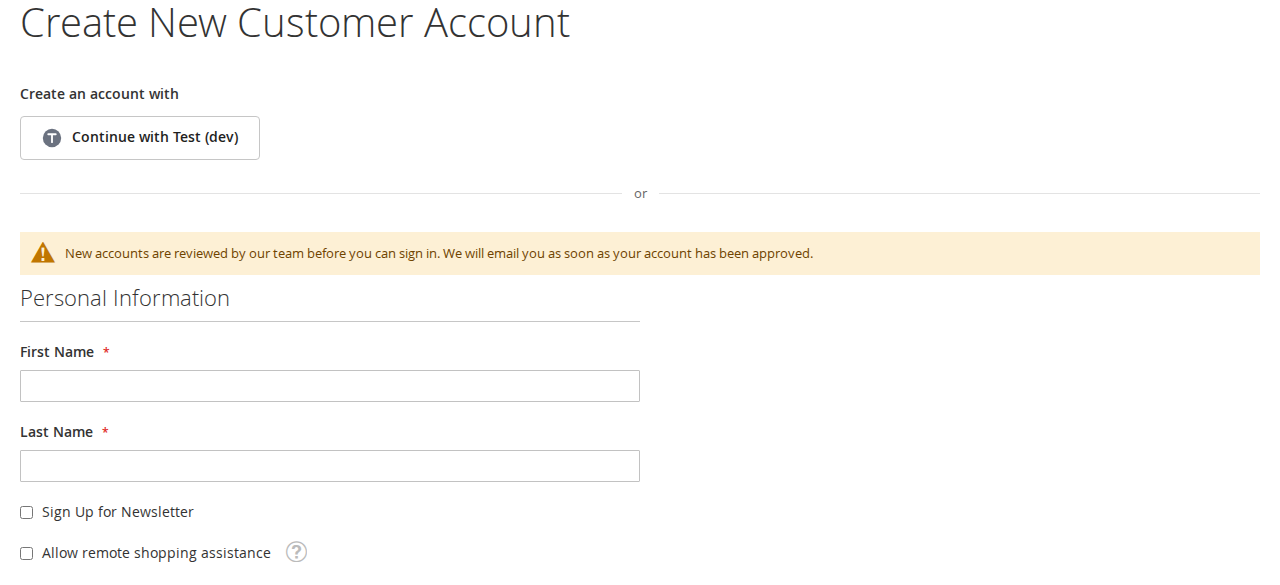
An optional notice above the registration form explains that accounts are reviewed. After registering, the customer is not signed in and sees your approval message.
02 / 06
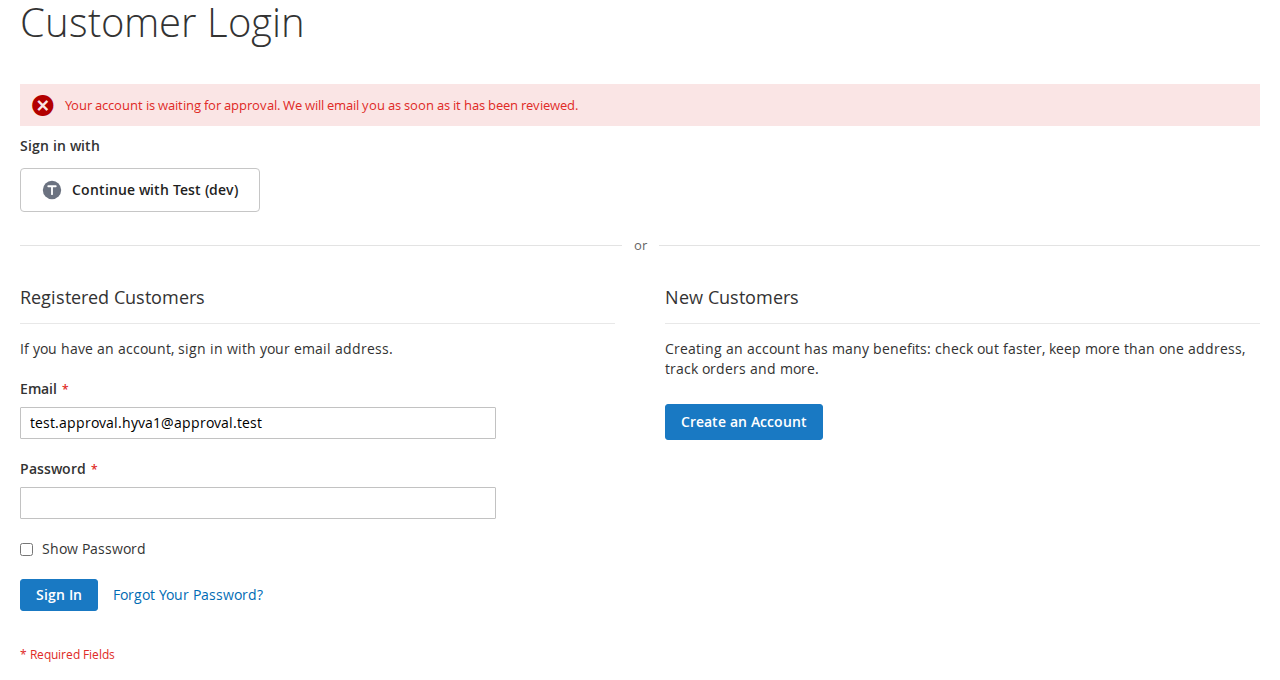
A pending or rejected customer who tries to sign in sees your message for that status. The texts can be changed per store view.
03 / 06
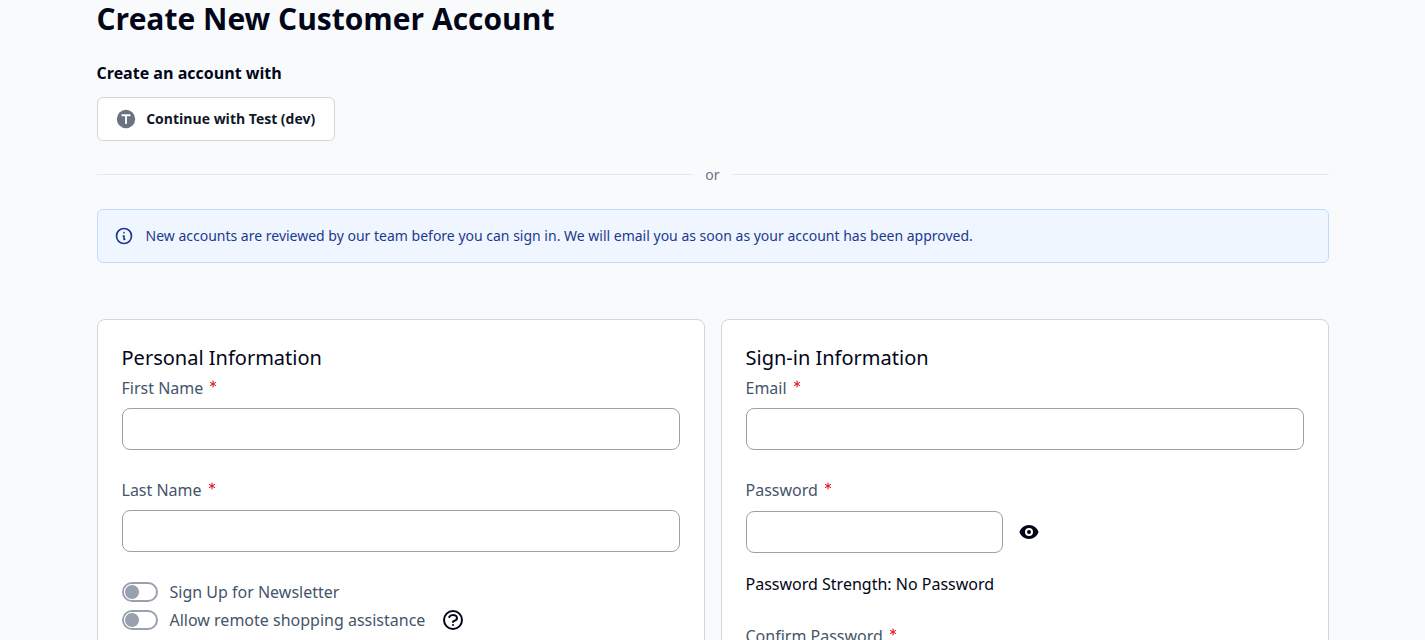
The registration notice has its own Hyvä template, picked automatically. Sign-in messages appear in Hyvä's own message area.
04 / 06
Pending and rejected accounts with keyword search, filters and status badges. Approve or reject in bulk; the menu shows how many are waiting.
05 / 06
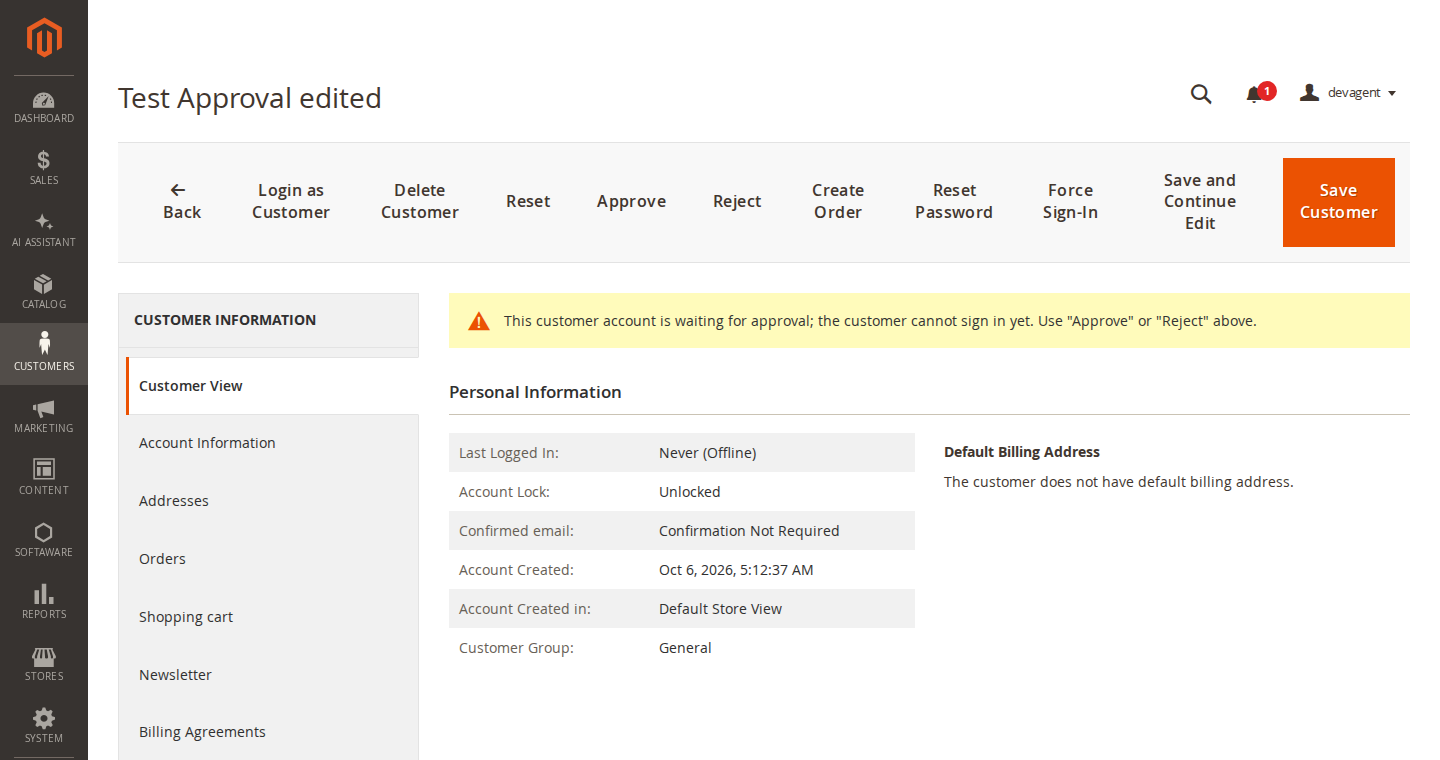
A notice shows the status, and the Reject button asks for an optional reason that can be included in the email to the customer.
06 / 06
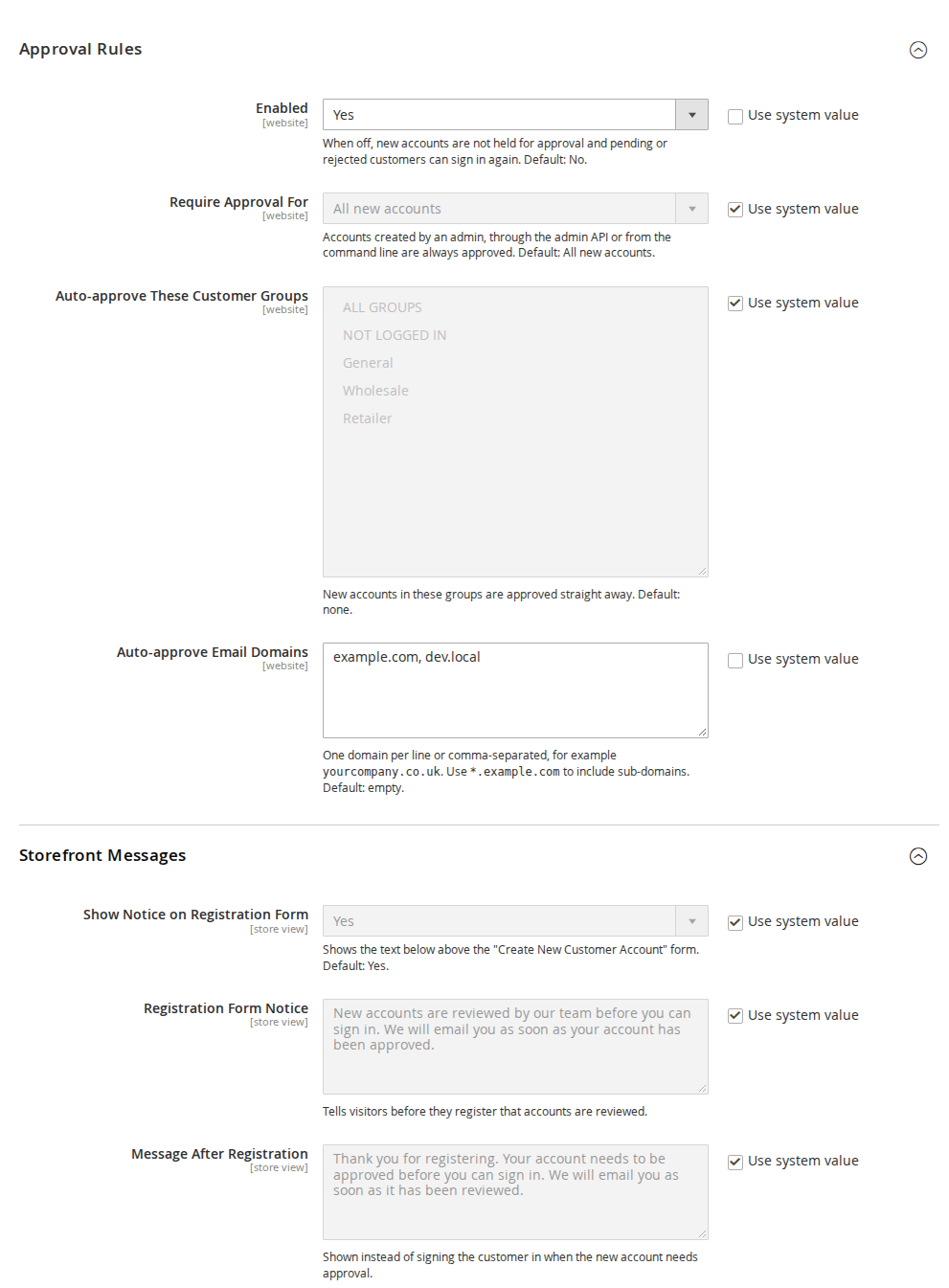
Choose who needs approval, which groups and email domains are approved straight away, the storefront messages and the emails.
Live demo
A full Magento store with the module installed, on Luma and on Hyvä. The admin demo signs you in with one click.
Compatibility
| Latest version | 1.2.2 · 9 Oct 2026 |
|---|---|
| composer.json requires | php ~8.2.0||~8.3.0||~8.4.0||~8.5.0 magento/framework ~103.0.7 softaware/module-core ^1.0 magento/module-authorization * magento/module-backend * magento/module-cms * magento/module-config * magento/module-customer * magento/module-eav * magento/module-email * magento/module-integration * magento/module-store * magento/module-ui * |
Installation
After you buy, create a Composer key in your account. Then, in the root of your Magento project:
01Add the repository and your key (once per project)
composer config repositories.softaware composer https://repo.softawarecommerce.com
composer config --auth http-basic.repo.softawarecommerce.com PUBLIC_KEY PRIVATE_KEY
02Install the module
composer require softaware/module-customer-approval
03Enable it
bin/magento setup:upgrade
bin/magento setup:di:compile
bin/magento setup:static-content:deploy
bin/magento cache:flush
The last three are only needed in production mode.
Prefer a zip? Every version you are entitled to can be downloaded from My modules. More about Composer access
User guide
For version 1.2.2. The same guide comes with the module, in docs/user-guide.md.
New customer accounts wait for approval by your team before they can sign in. You decide which accounts need approval, approve or reject them in the admin, and the module emails your team and your customers. This guide covers installation, every setting and day-to-day use.
On the public demo storefront approval is switched off, so visitors can register and try the other modules. The admin demo shows the Approval Queue, the customer page buttons and the settings.
| Magento | Magento Open Source or Adobe Commerce 2.4.7 to 2.4.9 |
| PHP | 8.2 to 8.5 |
| Themes | Luma, Blank and themes based on them; Hyvä 1.3 or later |
| Other | softaware/module-core (installed automatically) |
Install with Composer from repo.softawarecommerce.com. Your access keys and the full set-up are described at https://softawarecommerce.com/shop/composer-access/.
composer config repositories.softaware composer https://repo.softawarecommerce.com
composer config --auth http-basic.repo.softawarecommerce.com PUBLIC_KEY PRIVATE_KEY
composer require softaware/module-customer-approval
bin/magento setup:upgrade
bin/magento setup:di:compile            # production mode only
bin/magento setup:static-content:deploy # production mode only
bin/magento indexer:reindex customer_grid
bin/magento cache:flush
The reindex adds the "Approval Status" column to the customer grid. All customers that exist at installation are marked as approved. On Hyvä, run your usual Tailwind build after installing so the registration notice is styled (the module registers itself for Hyvä's Tailwind source scanning).
To update later: composer update softaware/module-customer-approval, then the same bin/magento commands.
Approval rules and the shop team email are set per website; storefront messages and customer emails per store view. Every field shows its default in the comment and has "Use system value".
| Setting | What it does |
|---|---|
| Enabled | When No, new accounts are not held for approval and pending or rejected customers can sign in again. Default: No. |
| Require Approval For | All new accounts or Selected customer groups. Accounts created by an admin, through the admin API or from the command line are always approved. Default: All new accounts. |
| Customer Groups That Need Approval | With "Selected customer groups": the groups whose new accounts need approval. This is the group the new account is assigned to (by default "Default Group" under Customers > Customer Configuration > Create New Account Options). If none is selected, no account needs approval. |
| Auto-approve These Customer Groups | With "All new accounts": new accounts in these groups are approved straight away. Default: none. |
| Auto-approve Email Domains | One domain per line or comma-separated, for example yourcompany.co.uk. Use *.example.com to include sub-domains. Default: empty. |
| Setting | What it does |
|---|---|
| Show Notice on Registration Form | Shows the notice below above the "Create New Customer Account" form. Default: Yes. |
| Registration Form Notice | Tells visitors before they register that accounts are reviewed. |
| Message After Registration | Shown instead of signing the customer in when the new account needs approval. |
| Sign-in Message: Pending | Shown on the login form and the checkout login when a pending customer tries to sign in. |
| Sign-in Message: Rejected | Shown on the login form when a rejected customer tries to sign in. |
| After Registration, Go To | The login page, or a CMS page that explains your approval process. Default: Login page. |
| Setting | What it does |
|---|---|
| Email on New Account Waiting for Approval | Emails the recipients when a new account is waiting for approval. Default: Yes. |
| Recipients | Comma-separated email addresses, for example sales@example.com. No email is sent while this is empty. |
| Email Template | The template for this email. |
| Setting | What it does |
|---|---|
| Email Sender | The store email identity used for all emails of the module, including the one to the shop team. Default: General Contact. |
| Send "Account Approved" Email | Tells the customer they can now sign in. Default: Yes. |
| "Account Approved" Template | The template for this email. |
| Send "Account Not Approved" Email | Tells the customer the account was not approved. Default: Yes. |
| "Account Not Approved" Template | The template for this email. |
| Include Rejection Reason in Email | Adds the reason entered when rejecting. Default: No. |
To change the wording of an email, create a template from the module's template under Marketing > Communications > Email Templates and select it in the setting.
Before registering. With "Show Notice on Registration Form" on, a notice above the registration form explains that new accounts are reviewed. Luma and Hyvä each have their own template.
| Luma | Hyvä |
|---|---|
 |  |
After registering. If the account needs approval, the customer is not signed in. "Thank you for registering" is replaced by your "Message After Registration", and the customer is sent to the login page or your CMS page. This also applies to accounts created at checkout or through a social login.
Signing in. A pending or rejected customer who tries to sign in sees the message for their status and stays signed out. The same customer is also refused on:
POST /V1/integration/customer/token) and GraphQL (generateCustomerToken) customer tokens;generateCustomerTokenAsAdmin), and store switching.Through the REST and GraphQL token endpoints Magento replaces every sign-in error with its generic message.
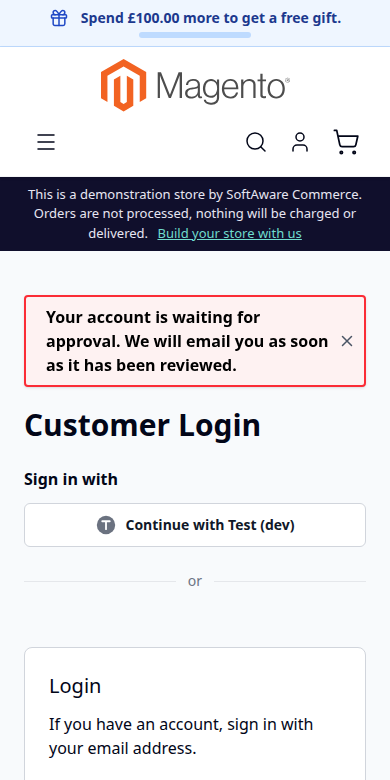
After approval. The customer gets the "Account Approved" email and can sign in as usual. If you reject the account, the customer gets the "Account Not Approved" email, with the reason if you enabled that.
Softaware > Customer Approval > Approval Queue lists the pending and rejected accounts with ID, name, email, approval status (Pending, Rejected), rejection reason, group, company, country, website (under Columns) and registration date. Search by keyword (name, email address and the other indexed customer fields) or filter the columns. Rejected accounts stay listed, so you can still approve them later.
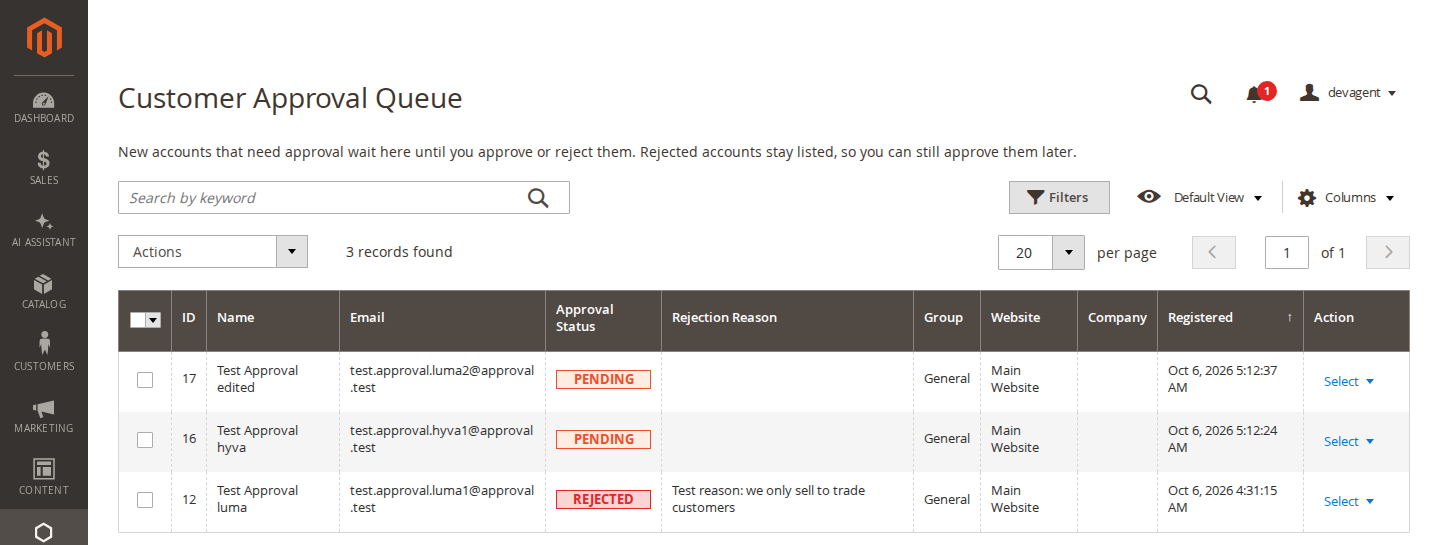
The menu item shows the number of waiting accounts, for example "Approval Queue (2)", and a message in the admin notice bar says how many accounts are waiting.
On Customers > All Customers > edit customer a notice shows the approval status, and the toolbar has Approve and Reject buttons. Reject asks for an optional reason, which is stored with the account and shown in the queue.
Customers > All Customers has an "Approval Status" column with a filter, and the mass actions Approve Account and Reject Account under Actions.
Rejecting a customer, or setting them back to pending, signs them out of the storefront, ends "Remember Me" sessions and revokes their API tokens. Customers cannot change their own status: the approval attributes are not in any form, and a status sent with a customer save is ignored.
Under System > Permissions > User Roles > Role Resources > Softaware > Customer Approval:
| Resource | Allows |
|---|---|
| Approve and Reject Customers | The Approval Queue, the customer page buttons, the mass actions and the REST API |
| Settings | Stores > Configuration > Softaware > Customer Approval |
The customer grid mass actions are visible to every admin who can see the customer grid, but they only work with the "Approve and Reject Customers" permission.
bin/magento softaware:customer-approval:status                          # list pending accounts
bin/magento softaware:customer-approval:status --status=rejected        # list rejected (or approved) accounts
bin/magento softaware:customer-approval:status jane@example.com --set=approved [--no-email]
bin/magento softaware:customer-approval:status 42 --set=rejected --reason="Trade customers only"
bin/magento softaware:customer-approval:status 42 --set=pending
A customer is given by ID or email address; use --website=<id> when the same email exists on several websites. --no-email changes the status without emailing the customer.
With an admin token and the "Approve and Reject Customers" permission:
GET  /V1/softaware/customer-approval/:customerId            -> "pending" | "approved" | "rejected"
POST /V1/softaware/customer-approval/:customerId/approve     {"notify": true}
POST /V1/softaware/customer-approval/:customerId/reject      {"reason": "...", "notify": true}
POST /V1/softaware/customer-approval/:customerId/pending
The event softaware_customer_approval_status_changed (with customer, previous_status, status and reason) is dispatched on every change, for example to send the status to a CRM.
| Problem | Solution |
|---|---|
| New accounts are not held for approval | Check Enabled for the website (not only the default scope), the Require Approval For setting, the selected groups and the auto-approve groups and domains. Accounts created in the admin are always approved. |
| The customer grid has no "Approval Status" column | Run bin/magento indexer:reindex customer_grid. |
| The team gets no email | Fill in Recipients; no email is sent while it is empty. Check that Magento can send email. |
| A customer cannot sign in after approval | Check the status on the customer page. Through REST or GraphQL, refused attempts count towards Magento's account lockout; unlock the account under Account Lock if needed. |
| The link in the team email opens the dashboard | The link has no admin secret key. With "Add Secret Key to URLs" on, the admin opens the dashboard first. |
| The registration notice looks unstyled on Hyvä | Rebuild the Hyvä theme CSS after installing or updating. |
bin/magento module:disable Softaware_CustomerApproval
composer remove softaware/module-customer-approval
bin/magento setup:upgrade
Once the module is removed, nobody is held for approval: pending and rejected customers can sign in again. The customer attributes softaware_approval_status and softaware_approval_reason stay in the database until you remove them.
Changelog
softaware/module-core ^1.0 (the README said ^1.2; composer.json was right).softaware/module-core instead of softaware/module-base. The admin menu and ACL now sit under Softaware_Core::core ("Softaware"); roles that had access keep it (migrated by module-core). After updating all SoftAware modules, softaware/module-base can be removed.generateCustomerTokenAsAdmin (Login as Customer for headless storefronts) issued tokens for pending and rejected customers. It is refused now, like the storefront "Login as Customer".FAQ
Something else on your mind? The developers who wrote the module answer before and after you buy.
Ask a question →Already installed it? Open a support ticket
No. The module is installed switched off, so it does not suddenly block registrations. Turn it on per website under Stores > Configuration > Softaware > Customer Approval > Approval Rules > Enabled. Customers that exist when the module is installed are approved.
Yes. Set "Require Approval For" to selected customer groups and choose the groups. The group is the one the new account is assigned to, by default the "Default Group" under Customers > Customer Configuration > Create New Account Options. With "All new accounts" you can instead pick groups that are approved straight away.
Yes, with "Auto-approve Email Domains": enter domains such as yourcompany.co.uk, one per line or comma-separated. *.example.com includes sub-domains.
After registering, the customer is not signed in. The usual "Thank you for registering" message is replaced by your approval message, and the customer is sent to the login page or a CMS page of your choice. When they try to sign in, they see the message for their status (pending or rejected). All texts can be changed per store view.
No. Besides the sign-in form, the module refuses the checkout sign-in popup, REST and GraphQL customer tokens, the RSS feed login and password-less sign-ins such as social login, email confirmation links, the automatic sign-in after registration, Login as Customer and store switching. New accounts get their status from the rules however they are created, including checkout, REST, GraphQL and social login.
Yes. The registration notice has a Hyvä template, and sign-in and registration use Magento's own controllers in both themes, so the messages appear as usual. Checkout on Hyvä uses the Luma checkout fallback.
No. Accounts created by an admin, through the admin or integration API, or from the command line are approved straight away.
In the Approval Queue (Softaware > Customer Approval > Approval Queue), with the Approve and Reject buttons on the customer page, with the "Approve Account" and "Reject Account" mass actions in Customers > All Customers, with the admin REST API or with the softaware:customer-approval:status command.
Yes. The Reject button on the customer page asks for an optional reason. With "Include Rejection Reason in Email" on, the reason is included in the "Account Not Approved" email.
The customer is signed out of the storefront, "Remember Me" sessions are ended and their API tokens are revoked. The same happens when you set a customer back to pending.
The addresses under "Email to Shop Team > Recipients" get an email for each new account waiting for approval. No email is sent while the field is empty. Customers get an email when their account is approved or not approved; both can be switched off.
No. The approval attributes are not in any customer form, and a status sent with a customer save (for example through the REST API) is ignored.
No, that is not part of this module.
Support
From the blog
Magento Open Source lets anyone register and sign in straight away. Here is how to hold new accounts for review on a trade-only shop, and which core settings you still need to change.
We use necessary cookies to run this site and, with your permission, Google Analytics to understand how it is used. You can accept analytics, reject it or choose in the settings. Cookie policy
Choose which cookies you allow. Necessary cookies are always on because the shop cannot work without them. You can change your choice at any time with the "Cookie settings" link.
Needed for the basket, checkout, login and security. They do not track you.
Google Analytics: how many people visit, which pages they read and how they found the site. It sets the _ga cookies and sends usage data to Google.