Layered Navigation
Filters that shoppers actually use: several options per filter with correct counts, swatches, a price slider, Ajax updates and optional readable filter URLs, on Luma and Hyvä.
- Magento 2.4.7 – 2.4.9
- PHP 8.2 – 8.5
- Hyvä and Luma
- Version 1.1.3
One-off payment, with 12 months of updates.
What is included
- 12 months of new versions and fixes; the versions released in that time stay yours
- Install with Composer, or download a zip from your account
- Licence for one production domain, staging and development copies included
- 30-day money-back guarantee, refund policy
No subscription or automatic renewal. Keep using the versions included in your update period. Update and licence details
Key features
- Several options per filter (OR) and across filters (AND)
- Correct counts for the options of a filter in use
- Checkboxes, swatches, dropdown or price slider per attribute
Composer package softaware/module-layered-navigation
-
Shoppers find it faster
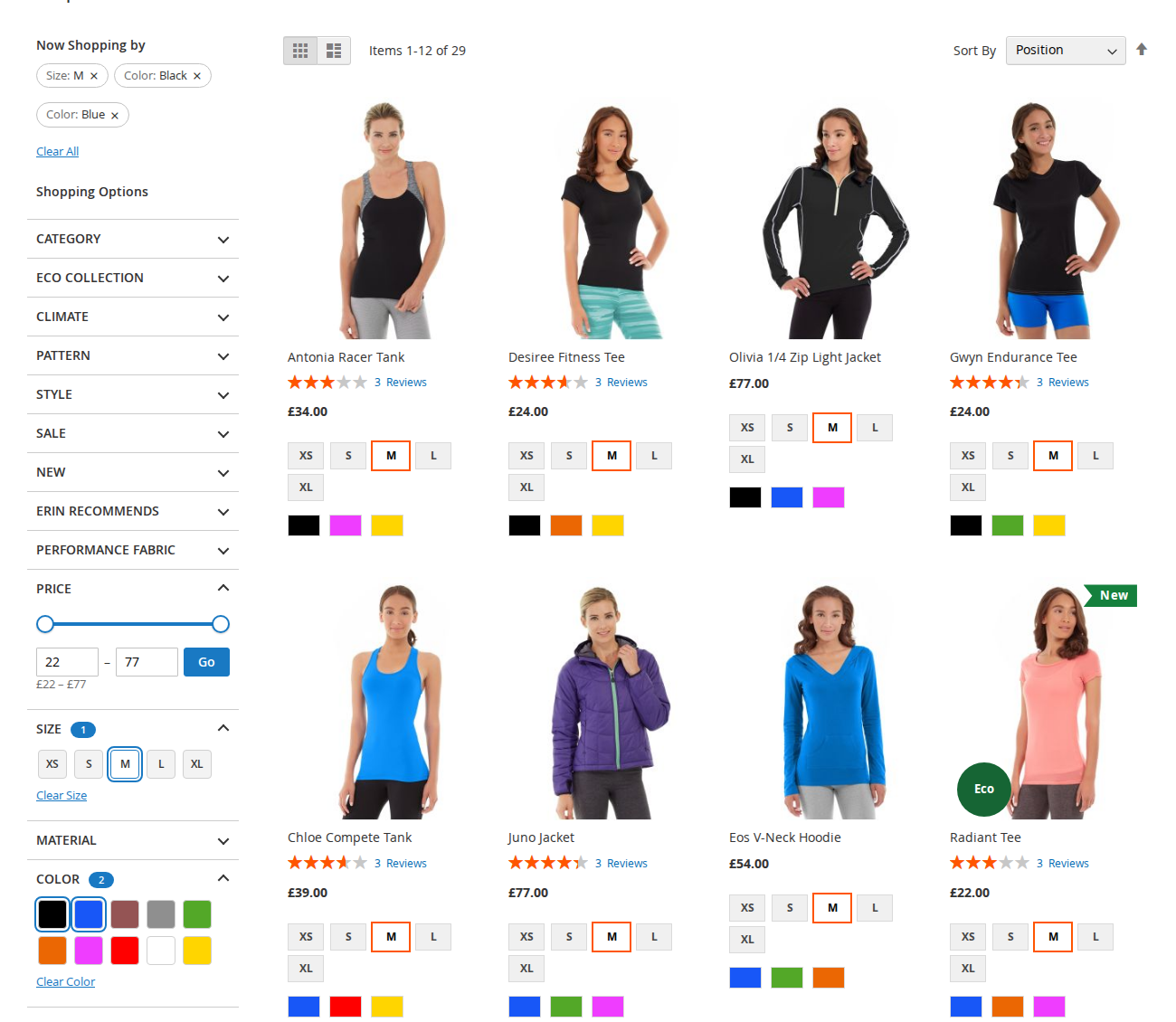
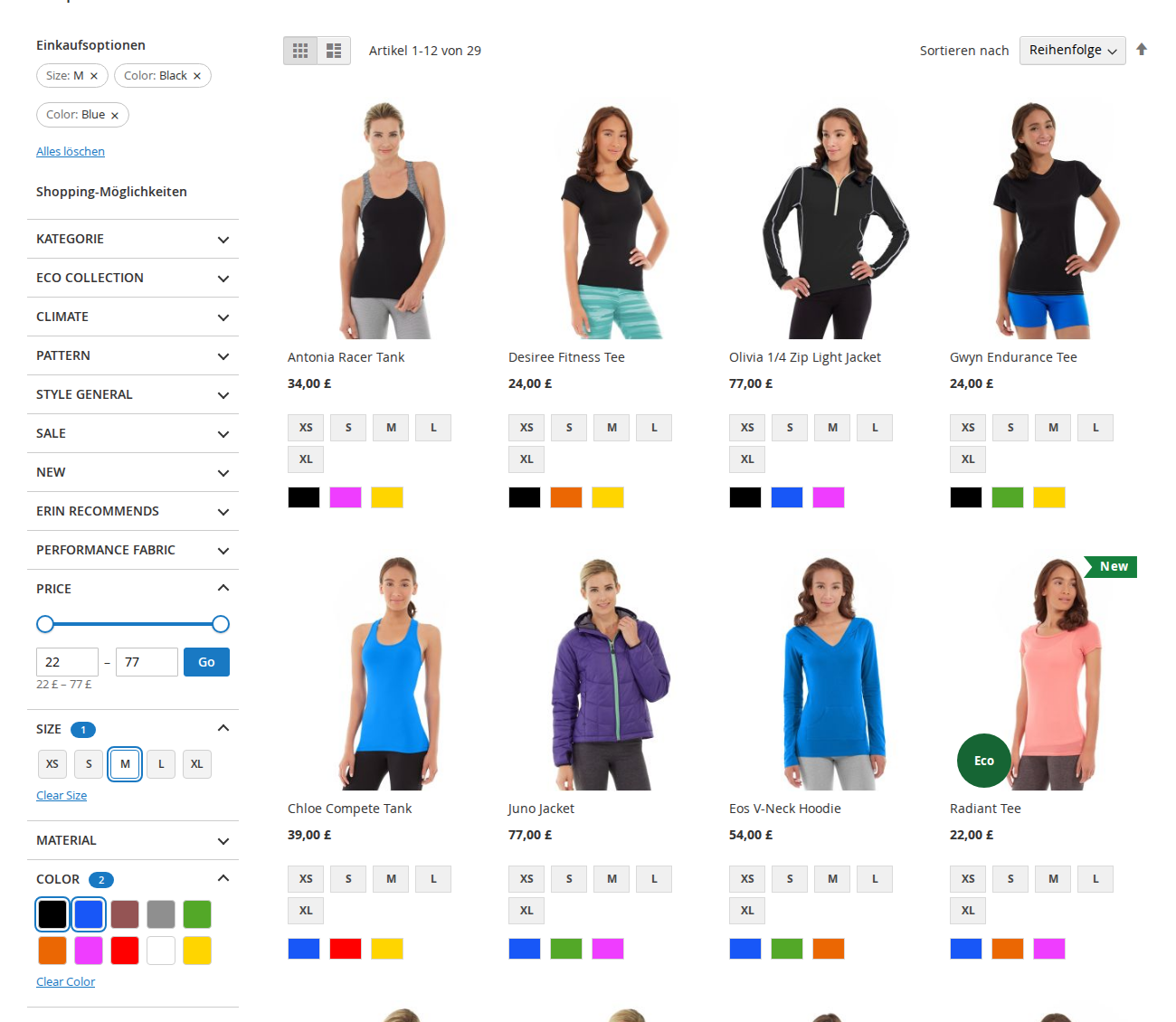
Black or Blue, in size M: shoppers combine options the way they think, and every count shows what is left before they click.
-
Readable filter addresses
/tops-women/color-black-blue/size-m.html instead of option IDs, with your own words per store view and 301 redirects from the old addresses.
-
Fast and cache-friendly
Counts come from the search engine, not from per-product queries. Every filtered list is a normal address that the full page cache stores.
All features
What is included
Filtering
- Several options of one attribute combined with OR
- Different attributes combined with AND
- Counts stay correct for a filter already in use
- Filters on category pages and search results
- Optional: hide filters that offer only one option
Display
- Checkboxes, swatches, dropdown or slider per attribute
- Price slider with from and to boxes, or Magento's price ranges
- Option order: position, name or number of products
- Expanded or collapsed on page load per attribute
- "Show more" link and search box for long lists
SEO
- Optional friendly filter URLs on category pages
- One address per combination, other orders redirect (301)
- Old query-string addresses redirect (301)
- Slugs per store view, editable in the admin
- rel="nofollow" on links that combine two or more values
Shopping experience and developers
- Ajax updates of list, filters and address bar; Back and Forward work
- Works without JavaScript as plain links
- Keyboard accessible filters
- JavaScript event after every Ajax update
- FilterStateInterface for other modules, CLI to list slugs
Feature tour
Everything your shoppers and your team see
01 / 07
All filters on one sidebar
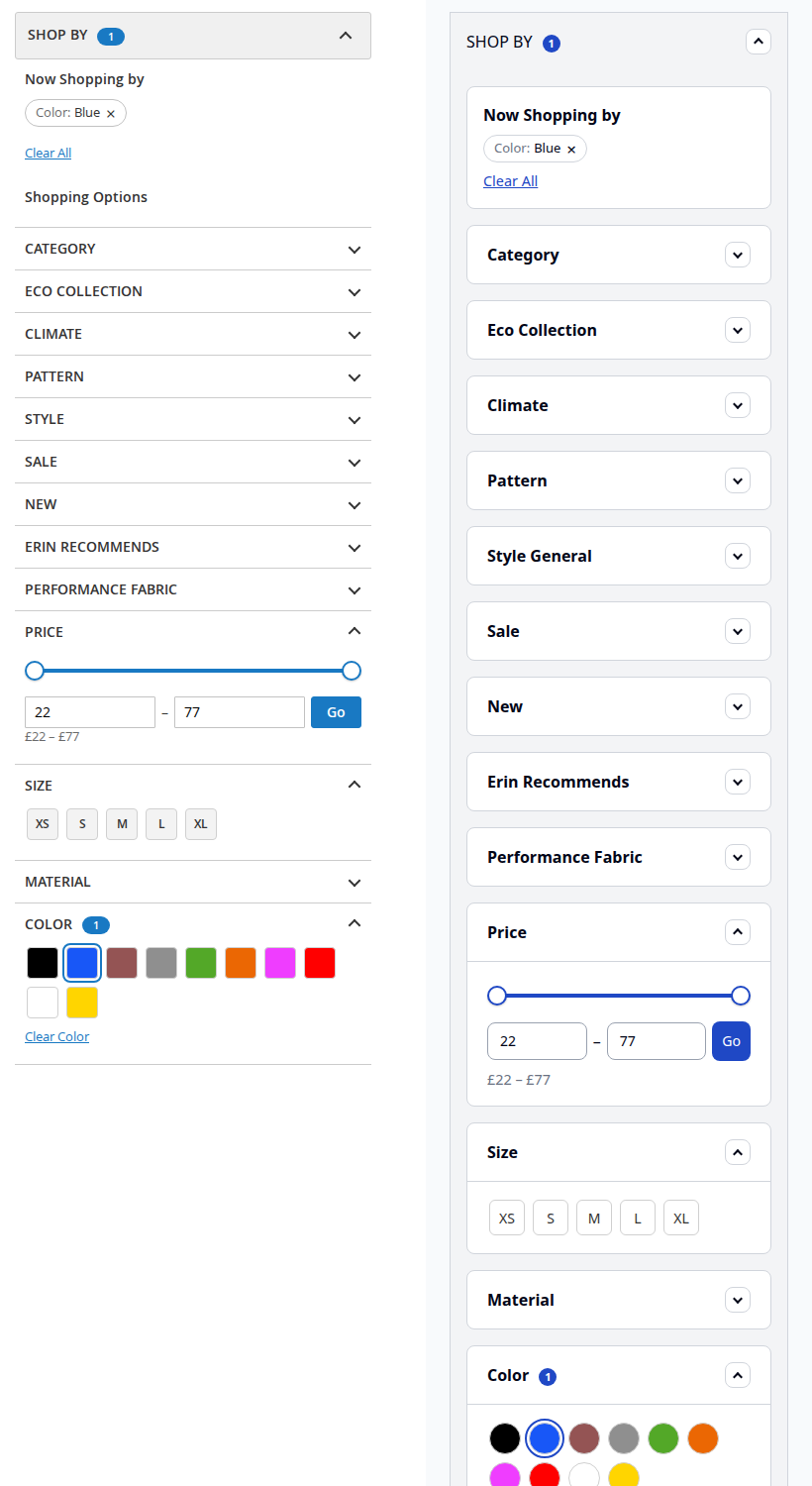
Selected options appear as chips with a remove link. Colour swatches allow several choices, sizes keep their text swatches and price gets a slider with from and to boxes.
02 / 07
Native on Hyvä
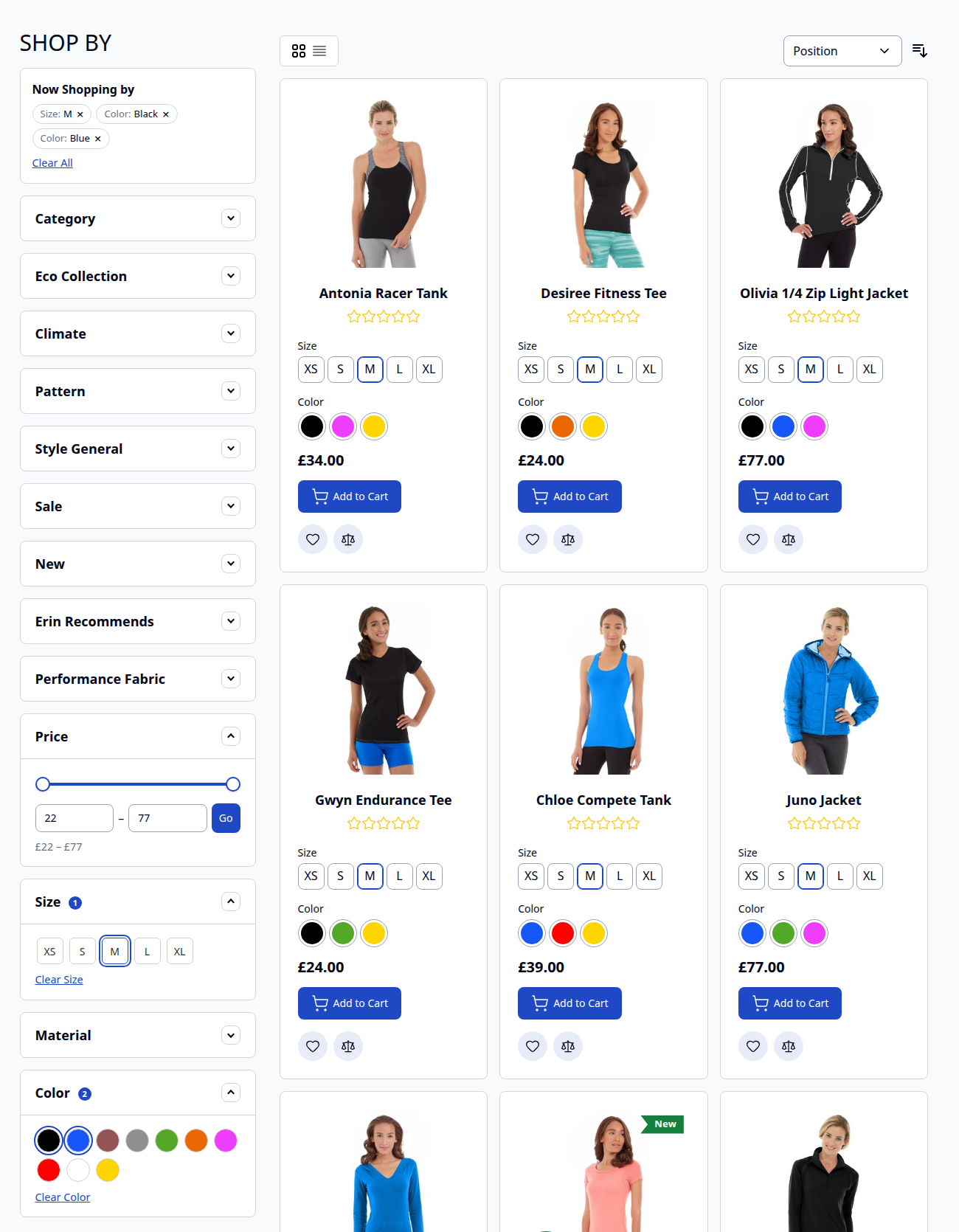
The same filters on Hyvä, styled through Tailwind and run by one small vanilla JavaScript file. No RequireJS, jQuery or Alpine needed for the filters.
03 / 07
Folds behind "Shop By" on phones
On small screens the whole filter block opens from one "Shop By" bar, with the number of active filters in a badge. Luma on the left, Hyvä on the right.
04 / 07
Your words in the address
With SEO-friendly filter URLs on, the German store view of the demo filters to /de/women/tops-women/color-blau-schwarz/size-m.html. Combinations of two or more values get rel="nofollow".
05 / 07
Edit the slug of every option
Pick an attribute and a store view and set your own slug for each option, or leave it empty to use the option label. Slugs are checked before anything is saved.
06 / 07
Display, order and state per filter
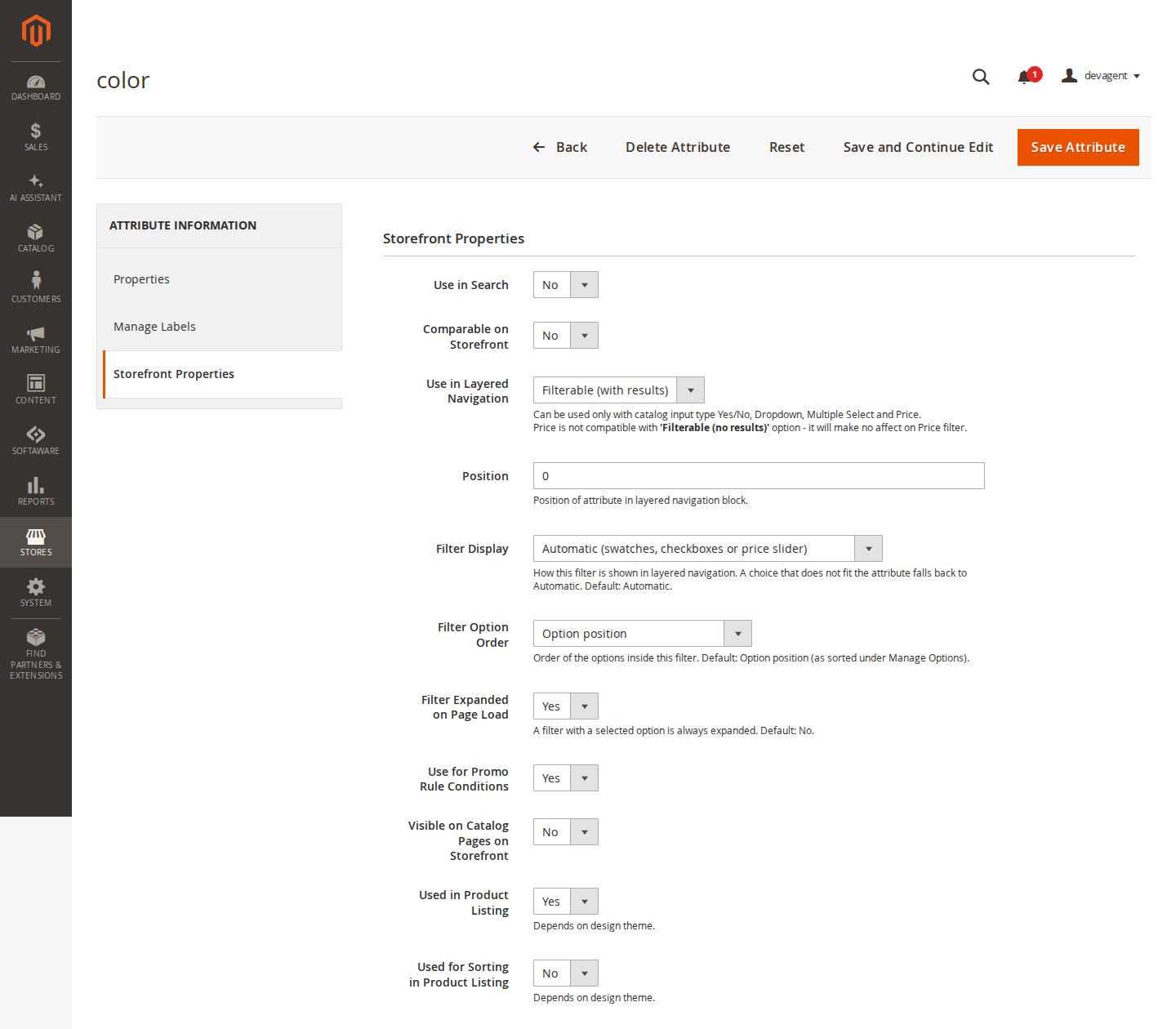
On the attribute page: Filter Display, Filter Option Order (position, name or number of products) and Filter Expanded on Page Load.
07 / 07
Short settings page, per store view
Ajax filtering, the "Show more" limit, the search box threshold, hiding single-option filters and SEO-friendly filter URLs.
Live demo
Try it before you install it
A full Magento store with the module installed, on Luma and on Hyvä. The admin demo signs you in with one click.
Compatibility
Requirements and compatibility
| Magento | 2.4.7 – 2.4.9 |
|---|---|
| Storefront themes | Luma Blank Hyvä |
| PHP | 8.2 – 8.5 |
| Latest version | 1.1.3 |
| composer.json requires | php ~8.2.0||~8.3.0||~8.4.0||~8.5.0 magento/framework ~103.0.7 softaware/module-core ^1.0 magento/module-backend * magento/module-catalog * magento/module-catalog-search * magento/module-config * magento/module-eav * magento/module-layered-navigation * magento/module-page-cache * magento/module-store * magento/module-swatches * magento/module-theme * magento/module-url-rewrite * |
Installation
Up and running in minutes
After you buy, create a Composer key in your account. Then, in the root of your Magento project:
-
01Add the repository and your key (once per project)
composer config repositories.softaware composer https://repo.softawarecommerce.com
composer config --auth http-basic.repo.softawarecommerce.com PUBLIC_KEY PRIVATE_KEY
-
02Install the module
composer require softaware/module-layered-navigation -
03Enable it
bin/magento setup:upgrade
bin/magento setup:di:compile
bin/magento setup:static-content:deploy
bin/magento cache:flush
The last three are only needed in production mode.
Prefer a zip? Every version you are entitled to can be downloaded from My modules. More about Composer access
User guide
How to set up and use Layered Navigation
For version 1.1.3. The same guide comes with the module, in docs/user-guide.md.
Better filters for category pages and search results on Luma and Hyvä: several options per filter with correct counts, swatches, a price slider, Ajax filtering and optional SEO-friendly filter URLs. This guide covers installation, configuration and day-to-day use.
- Demo (Luma): https://demo.softawarecommerce.com/women/tops-women.html
- Demo (Hyvä): https://demo.softawarecommerce.com/hyva/women/tops-women.html
- Demo of friendly filter URLs (German store view): https://demo.softawarecommerce.com/de/women/tops-women/color-blau-schwarz/size-m.html
- Admin demo: https://demo.softawarecommerce.com/try-admin/layered-navigation
- Changelog: Release notes · Questions: FAQ
1. Requirements
| Magento | Open Source or Adobe Commerce 2.4.7 to 2.4.9 |
| PHP | 8.2 to 8.5 |
| Search engine | OpenSearch or Elasticsearch (Magento's standard catalogue search) |
| Themes | Luma, Blank and themes based on them; Hyvä (tested with Hyvä 1.5 and the default theme) |
| Other | softaware/module-core (installed automatically) |
The module replaces the template of the blocks catalog.leftnav and catalogsearch.leftnav. Themes that move these blocks keep working; a theme that replaces them with its own block needs the template set again.
2. Installation
With Composer. Use the Composer keys from your account on softawarecommerce.com; how to get access is described at https://softawarecommerce.com/shop/composer-access/.
composer config repositories.softaware composer https://repo.softawarecommerce.com
composer config --auth http-basic.repo.softawarecommerce.com PUBLIC_KEY PRIVATE_KEY
composer require softaware/module-layered-navigation
bin/magento setup:upgrade
bin/magento setup:di:compile            # production mode only
bin/magento setup:static-content:deploy # production mode only
bin/magento cache:flush
Hyvä: the module registers itself for Hyvä's Tailwind build. After installing, rebuild your theme CSS (npm run build in the theme's web/tailwind folder) so the filter styles are included. Luma loads the same styles as css/layered-navigation.css without a build step.
To update later: composer update softaware/module-layered-navigation, then the same bin/magento commands.
3. Quick start
- Install the module. It is enabled by default, so your category pages show the new filters straight away.
- Open Stores > Attributes > Product, pick an attribute that is used in layered navigation (for example
color), tab Storefront Properties, and choose Filter Display, Filter Option Order and Filter Expanded on Page Load. - Optional: switch on SEO-Friendly Filter URLs under Softaware > Layered Navigation > Settings for the store views where you want readable addresses.
- Refresh the page cache (System > Cache Management) after changing settings.
4. Settings
Softaware > Layered Navigation > Settings, the same page as Stores > Configuration > Softaware > Layered Navigation. Every setting can be set per website and store view. Changing a setting marks the page cache as invalid; refresh it under System > Cache Management.
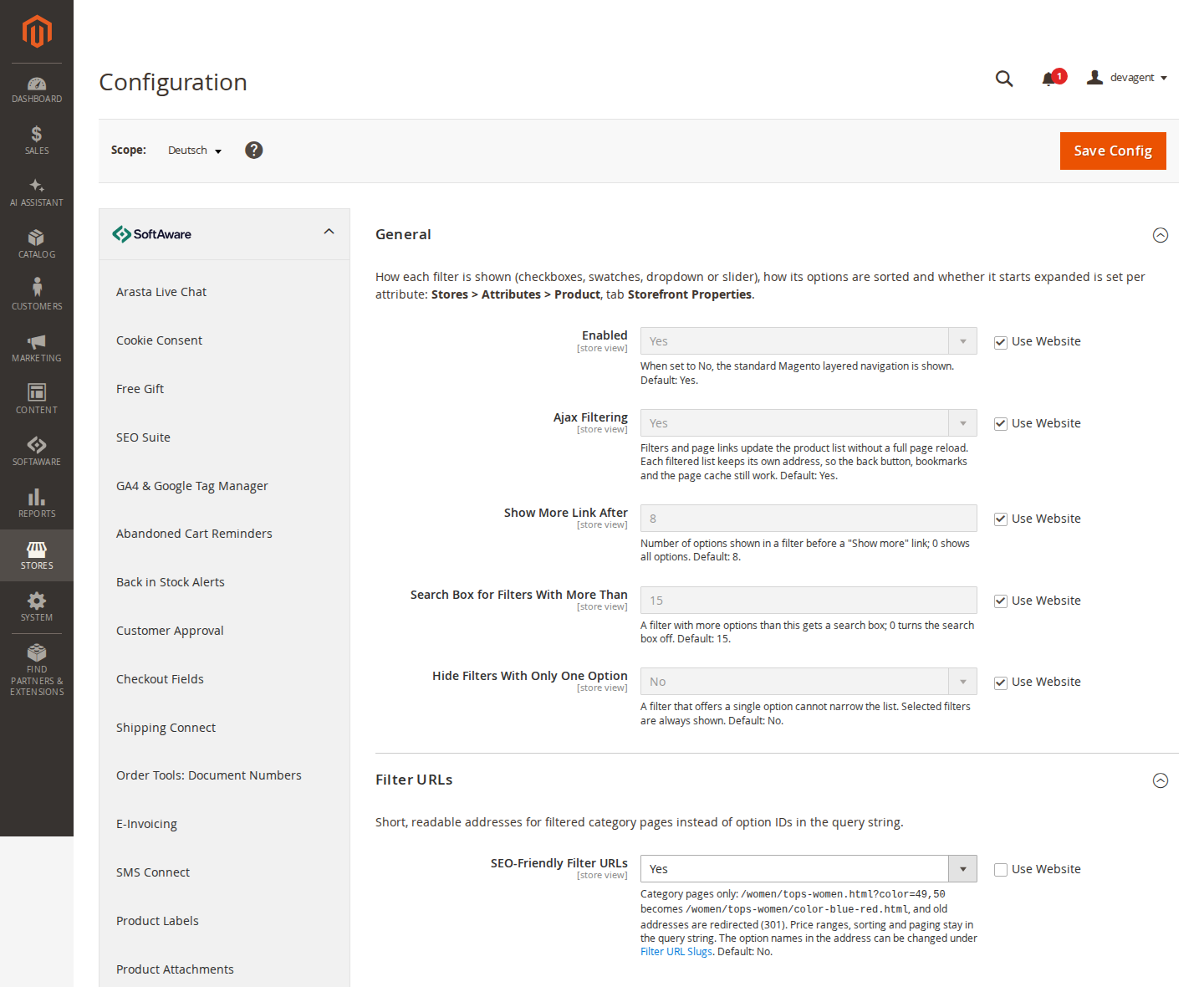
General
| Setting | Default | What it does |
|---|---|---|
| Enabled | Yes | When set to No, the standard Magento layered navigation is shown. |
| Ajax Filtering | Yes | Filters, chips and page links update the product list without a full page reload. Each filtered list keeps its own address, so the Back button, bookmarks and the page cache still work. |
| Show More Link After | 8 | Number of options shown in a filter before a "Show more" link. 0 shows all options. |
| Search Box for Filters With More Than | 15 | A filter with more options than this gets a search box. 0 turns the search box off. |
| Hide Filters With Only One Option | No | A filter that offers a single option cannot narrow the list, so it can be hidden. Selected filters are always shown. |
Filter URLs
| Setting | Default | What it does |
|---|---|---|
| SEO-Friendly Filter URLs | No | Category pages only: readable addresses such as /women/tops-women/color-black-blue/size-m.html instead of ?color=49,50&size=168. Old addresses are redirected (301). Price ranges, sorting and paging stay in the query string. |
5. Settings per attribute
Open Stores > Attributes > Product, edit an attribute and go to the tab Storefront Properties. Below "Position" you find three fields:
| Field | Options |
|---|---|
| Filter Display | Automatic (default): swatches for swatch attributes, a slider for price and decimal attributes, checkboxes for everything else. Checkboxes: several options can be selected. Dropdown: one option. Swatches: swatch attributes only. Slider: price and decimal attributes only. Price ranges as links: Magento's price ranges, price and decimal attributes only. A choice that does not fit the attribute falls back to Automatic. |
| Filter Option Order | Option position (default, as sorted under Manage Options), Name (A to Z), Number of products (most first). |
| Filter Expanded on Page Load | No (default) or Yes. A filter with a selected option is always expanded. |
"Use in Layered Navigation" and "Position" are Magento's own fields and work as usual: they decide whether the attribute is a filter and where it appears in the list.
6. What your customers see
Several options per filter. Options of one attribute are combined with OR, different attributes with AND. A shopper can pick Black and Blue and then size M and sees products that are black or blue and available in M. The counts next to the options of a filter that is already in use are calculated without that filter's own selection, so they show what the shopper would get by adding that option. This costs one extra search request per filtered attribute (at most six per page).
Chips. Every selected option appears under "Now shopping by" with a remove link. "Clear All" removes every filter, and each filter has its own "Clear <filter>" link.
Swatches. Colour, image and text swatch attributes keep their swatches and allow several choices. Colour swatches only accept hex colour values.
Price slider. Price (and decimal attributes set to Slider) get a range slider plus from and to boxes and a Go button. Numbers typed into the boxes are used as typed. The slider needs JavaScript; without it the other filters still work as links.
Long lists. After the number of options set in Show More Link After a "Show more" link appears. Filters with more options than Search Box for Filters With More Than get a search box that narrows the visible options.
Mobile. On small screens the whole filter block folds behind a "Shop By" bar with a badge for the number of active filters.
Ajax filtering. With Ajax on, clicking a filter, a chip or a page link replaces the product column and the filter block with the same HTML a normal page load returns and updates the address bar. Back and Forward work. Every filtered list is a normal GET address, so it also works without JavaScript and the full page cache stores it like any other page.
Search results. The same filters appear on the search results page, with query-string addresses.
Accessibility. Filters are <details> elements, checkbox options are links with role="checkbox" (Space or Enter), and the slider uses native range inputs plus number inputs.
7. SEO-friendly filter URLs
Switch on SEO-Friendly Filter URLs for the store views you want. Filtered category pages then use this scheme:
<category path without suffix>/<attribute code>-<slug>[-<slug>...][/<attribute code>-<slug>...]<category suffix>Example: /women/tops-women/color-black-blue/size-m.html.
- One path segment per attribute, sorted by attribute code; slugs within a segment are sorted alphabetically, so each combination has exactly one address. Other orders redirect (301) to it, and so do the old query-string addresses.
- Only dropdown, multiple select and yes/no attributes go into the path. Price and decimal ranges, the category filter, sorting and paging stay in the query string (
?price=20-50&p=2). - The filter router answers only when the path ends with the category URL suffix, the trailing segments are valid filters, the full path is not an existing URL rewrite (products, CMS pages and real subcategories always win) and the rest of the path is a category of the store view.
- Links that combine two or more filter values get
rel="nofollow", so crawlers are not sent through every combination. Single-filter pages stay crawlable.
Filter URL Slugs
Softaware > Layered Navigation > Filter URL Slugs
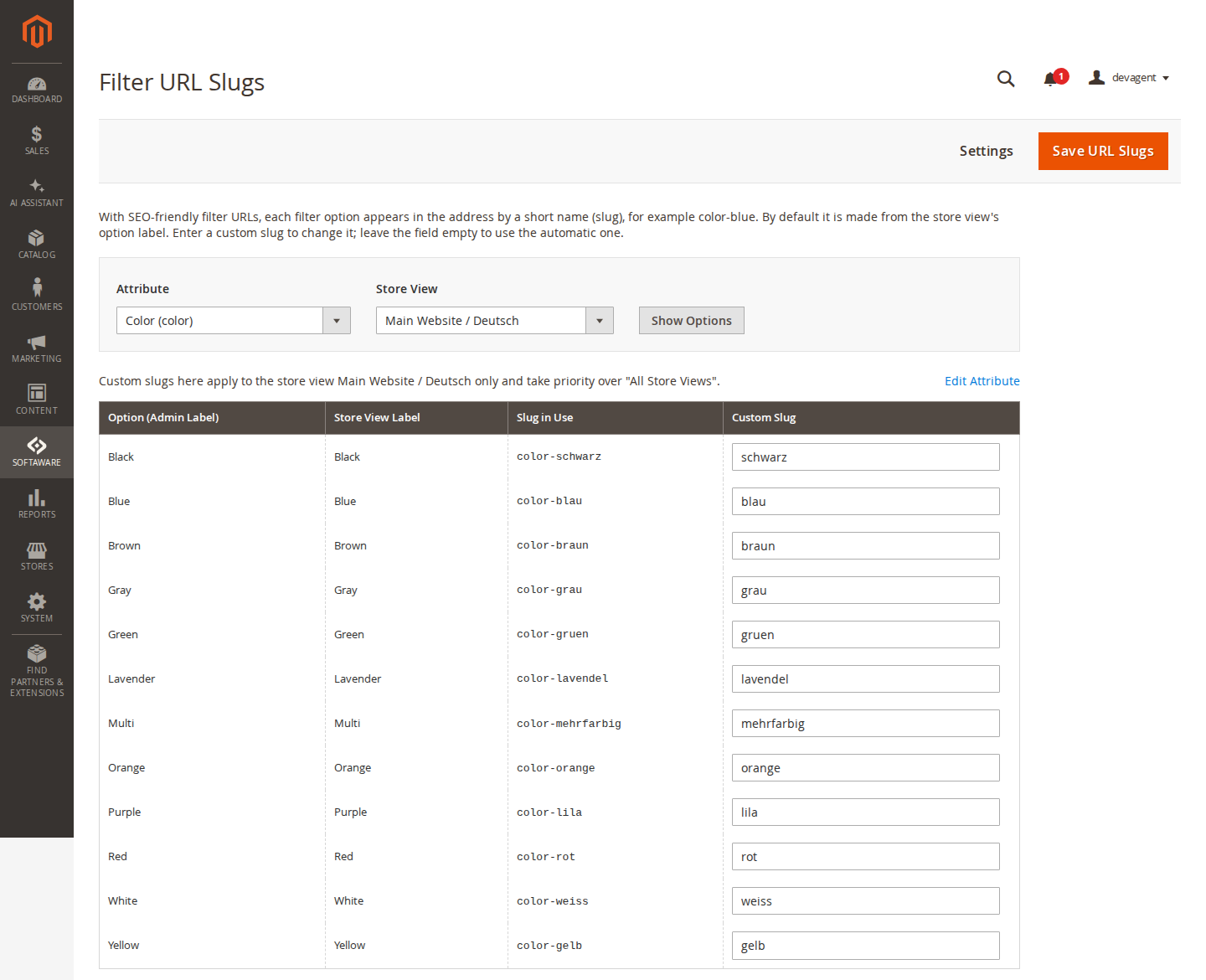
- Choose an Attribute and a Store View ("All Store Views" or a single view) and click Show Options.
- The table lists each option with its admin label, the store view label, the Slug in Use and a Custom Slug field.
- Enter custom slugs using
a-z,0-9and single hyphens. Invalid entries are flagged next to the field and checked again on save; if any entry is invalid, nothing is saved. - Click Save URL Slugs in the page actions bar. Saving cleans the full page cache.
Empty fields use the automatic slug: the transliterated store view label, for example "Light Blue" becomes light-blue. When two options would get the same slug, the option ID is appended. A slug for a single store view takes priority over the one for "All Store Views". Yes/No attributes use yes and no.
Settings in the actions bar opens the module settings, and Edit Attribute opens the attribute.
8. Command line
bin/magento softaware:layered-navigation:slugs <attribute_code> [--store=<code or ID>]Lists the option IDs, labels and the URL segment of each option for a store view (read-only). Example: bin/magento softaware:layered-navigation:slugs color --store=de.
9. For developers
JavaScript event. After every Ajax update this event fires:
document.addEventListener('softaware:layered-navigation:updated', function (event) {
    // event.detail.url      - the new address
    // event.detail.document - the parsed HTML document of the new page
});
Use it to re-run code that reads the product list on page load, such as analytics list views, sliders or lazy loaders. window.SoftawareLayeredNavigation.load(url) loads a filtered address the same way.
PHP API. Softaware\LayeredNavigation\Api\FilterStateInterface tells other modules what is filtered on the current category or search page: isFiltered(), getAppliedFilters() and isFriendlyUrl(). It is filled while the layered navigation is built, so read it when the page head or body is rendered. The filters are also added to Magento's layer state as usual, so code that reads the layer state keeps working in both URL modes.
10. Permissions (ACL)
Under System > Permissions > User Roles > Role Resources, Softaware > Layered Navigation:
| Resource | Gives access to |
|---|---|
Softaware_LayeredNavigation::layered_navigation | The menu entry |
Softaware_LayeredNavigation::slugs | Filter URL Slugs |
Softaware_LayeredNavigation::config | Settings |
A role can be given either page on its own. The fields on the attribute page use Magento's own attribute permissions.
11. Troubleshooting
| Problem | Solution |
|---|---|
| The old filters are still shown | Check Enabled for the store view and refresh the page cache. If your theme replaces the catalog.leftnav block with its own block, set the module's template on it again. |
| Filters look unstyled on Hyvä | Rebuild the theme CSS (npm run build in web/tailwind) so the module's styles are compiled in. |
| A setting has no effect on the storefront | Settings mark the page cache as invalid; refresh it under System > Cache Management. |
| Ajax filtering does a full page load | The theme has no .column.main element, so the module falls back to normal page loads. Filtering still works. |
| A filter is not in the friendly URL | Only dropdown, multiple select and yes/no attributes go into the path; price, decimal and category filters stay in the query string. Search results always use the query string. |
| An old friendly address returns 404 | The option label (and with it the automatic slug) was changed. Set a custom slug under Filter URL Slugs to keep the address. |
| An option stays in the query string with friendly URLs on | If a combination of slugs could be read in two ways, that filter stays in the query string. Give one of the options a different custom slug. |
12. Uninstall
bin/magento module:disable Softaware_LayeredNavigation
composer remove softaware/module-layered-navigation
bin/magento setup:upgrade
bin/magento cache:flush
With friendly URLs switched off (or the module removed), category pages use Magento's own filter addresses again.
Changelog
Release notes
1.1.3
Latest
docs/listing.json,docs/faq.md,docs/user-guide.mdand screenshots indocs/images/(Luma, Hyvä, mobile, friendly filter URLs, admin).
1.1.2
- Price/decimal slider: numbers typed into the from/to boxes are used as typed. They used to be clamped to the range of the products left, so 30–60 on a list priced 75–77 applied
price=-75(up to 75) and showed a product outside the requested range. A selected range outside the products' range now widens the slider instead of being changed, so the boxes show what was asked for (Luma and Hyvä). - ACL: the module has its own resource *Softaware > Layered Navigation* (
Softaware_LayeredNavigation::layered_navigation) with *Filter URL Slugs* and *Settings* below it. The menu entry used to require the Settings permission, so a role with only Filter URL Slugs did not see it. Settings moved there from *Stores > Configuration*; existing roles that had either permission get the new parent (data patch), with their Settings and Filter URL Slugs rights unchanged.
1.1.1
- Filter URL Slugs: *Save URL Slugs* and *Settings* sit in the page actions bar (Save only when there is something to save); the attribute and store view selection is a tidy filter bar whose attribute list is no longer cut off; column headings in title case ("Slug in Use", "Custom Slug"); invalid slugs are flagged next to the field before anything is posted; an *Edit Attribute* link next to the table.
- Filter URL Slugs: empty states with the next step when there are no filterable attributes (*Manage Product Attributes*) or the attribute has no options, and the "filter URLs are switched off" notice links to the settings.
- Settings: every field has "Use system value", comments name the defaults, General opens first, the number fields accept whole numbers from 0 only, and the long Filter URLs comment is shorter and links to Filter URL Slugs. The menu item is called "Settings" like in the other modules.
- Attribute edit page (Storefront Properties): the layered navigation fields name their defaults; Filter Option Order explains what it sorts.
- Admin styles moved from inline attributes to
view/adminhtml/web/css/admin.css; no horizontal overflow at 1024 px.
1.1.0
- Requires
softaware/module-coreinstead ofsoftaware/module-base. The admin menu and ACL now sit underSoftaware_Core::core("Softaware"); roles that had access keep it (migrated by module-core). After updating all SoftAware modules,softaware/module-basecan be removed.
1.0.0
- First release: multi-select filters with disjunctive counts from the search engine, "Now shopping by" chips, checkbox, swatch, dropdown and price/decimal slider display per attribute, option order and expanded state per attribute, "Show more" and search inside long filters, Ajax filtering with address bar and back button support, optional SEO-friendly filter URLs for category pages with editable option slugs and 301 redirects from query-string addresses, filters on search results,
FilterStateInterfacefor other modules, Luma and Hyvä.
FAQ
Questions, answered
Something else on your mind? The developers who wrote the module answer before and after you buy.
Ask a question →Already installed it? Open a support ticket
What does it change compared with Magento's own layered navigation?
Shoppers can pick several options in one filter (for example Black or Blue) and combine filters (Black or Blue, in size M). Selected options are shown as "Now shopping by" chips with a remove link, "Clear All" and "Clear <filter>". Each attribute can be shown as checkboxes, swatches, a dropdown or a price slider, long lists get "Show more" and a search box, the list updates without a full page reload, and filtered category pages can have readable addresses.
Are the product counts correct when several options are selected?
Yes. Options of one attribute are combined with OR, so the counts of a filter you are already using are calculated without that filter's own selection ("disjunctive" counts). This costs one extra search request per filtered attribute, at most six per page. All counts come from the search engine (OpenSearch or Elasticsearch); nothing is queried per product.
Does it work with Hyvä?
Yes. The module ships Hyvä layout handles and registers itself for Hyvä's Tailwind build, so the styles are merged into your theme CSS when you rebuild it. The behaviour is one small vanilla JavaScript file shared by Luma and Hyvä, with no RequireJS, jQuery or Alpine needed. It was tested with Hyvä 1.5 and the default theme.
What do the SEO-friendly filter URLs look like?
/women/tops-women.html?color=49,50&size=168 becomes /women/tops-women/color-black-blue/size-m.html. Each attribute gets one path segment, sorted by attribute code, and the options within a segment are sorted alphabetically, so every combination has exactly one address. Other orders and the old query-string addresses answer with a 301 redirect. The setting is off by default and can be switched on per store view.
Can I use my own words in the filter URLs, for example in German?
Yes. Under Softaware > Layered Navigation > Filter URL Slugs you pick an attribute and a store view and enter a slug for each option (letters a to z, digits and single hyphens). Empty fields use the store view's option label. The demo's German store view uses German colour slugs such as color-blau-schwarz.
Which filters go into the friendly URL?
Dropdown, multiple select and yes/no attributes on category pages. Price and decimal ranges, the category filter, sorting and paging stay in the query string (for example ?price=20-50&p=2). Search results keep query-string filters.
Can friendly filter URLs clash with products, CMS pages or subcategories?
No. The filter router only answers when the full address is not an existing URL rewrite, so products, CMS pages and real subcategories always win. It also checks that the rest of the path is a category of the store view and that every segment is a valid filter.
Will search engines crawl every filter combination?
Links that combine two or more filter values get rel="nofollow", so crawlers are not sent through every combination; pages with a single filter value stay crawlable. If you use an SEO module for robots and canonical tags, it can read the current filters through the module's FilterStateInterface.
Does Ajax filtering break the full page cache or the Back button?
No. Every filtered list is a normal GET address, so the full page cache stores it like any other page and the list works without JavaScript. With Ajax filtering on, the product list, the filters and the address bar update without a reload, and Back and Forward work.
My theme or another extension runs code on the product list. Does it still work after an Ajax update?
The product column is replaced with the same HTML a normal page load returns, Luma widgets are started again and on Hyvä inline scripts run and Alpine components are initialised. After that the event softaware:layered-navigation:updated fires on document, so analytics, sliders or lazy loaders can run again.
Is there a stock status or rating filter?
Not in this version. Stock status and ratings are not offered as filters.
What happens to old friendly addresses when I rename an option?
The automatic slug follows the option label, so an address with the old name returns 404. Set a custom slug under Filter URL Slugs to keep an address when you rename an option.
Support